

Choose exact DeltaMath work and keep verification visible
DeltaMath Assignment Runner loads open and past unfinished assessments from a linked student account, then lets you choose whole assignments or exact topics.
Show one answer gives a read-only preview for one unfinished task. Solve & Submit runs the selected queue with pacing controls, verified sources first, and an accuracy guard that skips work it cannot verify.
The same selection can be saved as a once, daily, or weekly schedule, with account, topic, timing, and timezone details visible before it is saved.
DeltaMath: browser tools and dashboard setup
Dashboard tools
Scan, solve and fill supported problems
Recognize supported questions and use the available answer and response-entry tools.
- Visible-question scanner
- Verified lookup and AI fallback
- Response entry and optional autosolve
Your input, setup and result
Ultimate or above · No task credits for this action. Compare current allowances and plans.
- What you need
- A linked DeltaMath student login, the intended assessment and exact topic. Check the question's required answer format.
- What to do
- Connect the account, load work and preview one supported answer. Choose pacing and explicitly start or schedule only the selected work.
- What to check
- Review the answer, topic and progress result. A preview does not submit the answer; an unsupported question or partial run does not confirm completion.
- If it does not work
- Reconnect when the account session expires. Refresh the work list if a topic changed. If a question is unsupported, keep its reported state and choose another supported topic.
The extension reads a supported question visible in the current tab. Dashboard topic runs use the linked account and their own work selection and pacing.
Controls and result walkthrough
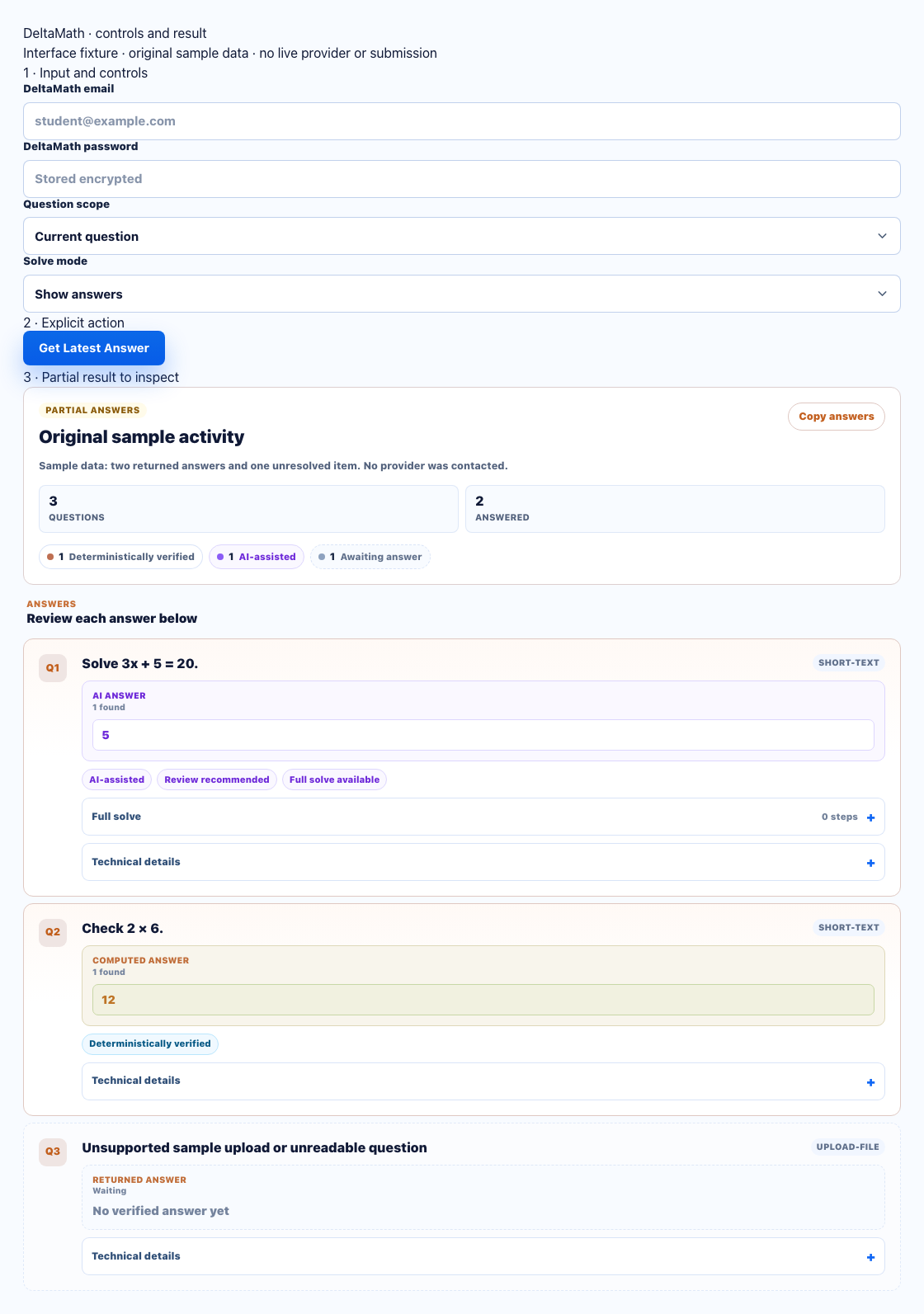
- Choose the exact topic and Show answers before a preview.
- Inspect the answer source and eligibility; AI-assisted previews may not submit.
- Keep unsupported or skipped items visible. A preview count is not assignment completion.
DeltaMath dashboard preview
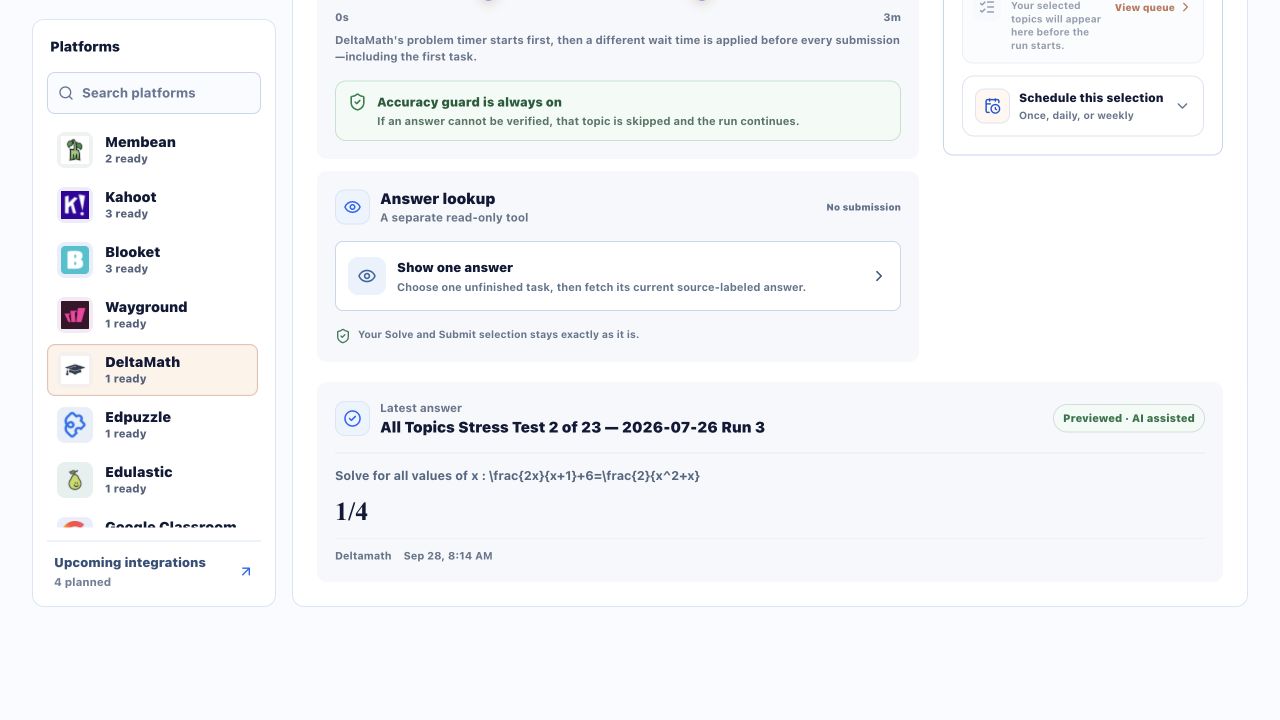
Dashboard screenshot captured on .
A clear workflow from source to result
- 1Connect DeltaMath
Connect and verify the DeltaMath student account.
- 2Select work
Choose whole assessments or exact unfinished topics.
- 3Choose pacing
Set the minimum and maximum task time.
- 4Take action
Preview one answer, run the queue, or save a schedule.
Run exact work instead of every available problem
Choose whole assessments or only the unfinished topics you want to include.
Preview one answer
Choose exactly one unfinished task and fetch a source-labeled answer without submitting.
Live selected-work queue
Track current, upcoming, completed, and skipped topics while the selected queue runs.
Verified answers first
Check verified sources first and skip unverified work instead of forcing a submission.
Flexible task pacing
Choose a minimum and maximum time from 0 seconds to 3 minutes for each task.
Save once, daily, or weekly DeltaMath schedules
Reuse the same carefully selected queue now or later.
Run once
Choose a future date and time for one selected DeltaMath queue.
Run daily
Use the same selected work and pacing at one saved time each day.
Run weekly
Choose specific weekdays and a run time for the active linked account.
Build a DeltaMath queue you can review
Keep the selected account, assignment, and topics understandable before a run begins.
Assessment picker
Open and past unfinished assessments load after the student account is ready.
Topic-level selection
Choose the full assessment or expand it and select exact unfinished skills.
Completion filter
Keep completed work out of the picker when you want to focus on what remains.
Visible skips
Review anything skipped by the accuracy guard instead of losing it in the result summary.
Clear limits instead of guaranteed-answer claims
StudyOutlaws does not claim every DeltaMath problem can be solved with certainty. The submission queue skips work that cannot be verified.
- Verified sources are preferred
- Preview mode does not submit
- Unverified topics are skipped
- Schedule details remain visible
Comparing several platforms or tool types? Use the school hacks and answer tools field guide.
DeltaMath preview vs. submission queue
Use preview for one read-only, source-labeled answer. Use Solve & Submit only when you intend to run the selected queue.
Show one answer
- One unfinished task
- Read-only answer preview
- Does not change the run queue
Solve & Submit
- Selected assignments or topics
- Accuracy guard always on
- Paced run and schedule support
DeltaMath FAQ
What is a DeltaMath solver?
It helps you choose an assessment or topic, preview an available answer with its source label, and run supported work from a linked student account.
Does the Assignment Runner require an account?
Yes. Connect and verify the DeltaMath student login so open and past unfinished assessments can load.
Can I preview an answer without submitting?
Yes. Show one answer is read-only and returns the current provider-verified or AI-assisted answer with a visible source label, without changing your Solve & Submit selection.
What happens when an answer cannot be verified?
The accuracy guard skips that topic and continues the queue instead of submitting an unverified result.
Can I choose exact DeltaMath topics?
Yes. Select whole assessments or individual unfinished topics, and hide completed topics when needed.
Can DeltaMath work be scheduled?
Yes. Save the selected work as a once, daily, or weekly schedule. Review the account, topics, pacing, time, and timezone before saving.