

Preview answers or run one exact Pear Assessment assessment
Pear Assessment, formerly Edulastic, loads unfinished work from a linked student account. Select an assessment to inspect supported questions, partial answers, and unresolved items.
Show Answers previews available answers without submitting. Solve & Submit completes supported questions using the selected scope, accuracy, and pacing settings.
Run the selected assessment now, schedule that exact assessment once, or create a daily or weekly All open assessments schedule that discovers eligible unfinished work when it runs.
Pear Assessment: browser tools and dashboard setup
Dashboard tools
Tools for supported assessments
Scan supported questions on Pear Assessment (formerly Edulastic) pages.
- Visible-question scanner
- Verified lookup and AI fallback
- Supported response entry and autosolve
Your input, setup and result
Ultimate or above · No task credits for this action. Compare current allowances and plans.
- What you need
- A supported Pear Assessment login and an accessible unfinished assessment. Review the question formats before a run.
- What to do
- Connect Pear Assessment, select an unfinished assessment and preview the result before choosing whether to submit.
- What to check
- Inspect solved, unanswered and unsupported counts. Objective-format handlers have fixture coverage; not every declared format has a verified live submission.
- If it does not work
- Keep unresolved questions visible, complete unsupported written/file/audio responses manually and reload the assessment to check its final status.
The dashboard uses the connected account. Edulastic remains the internal identifier and may still appear in login URLs.
Controls and result walkthrough
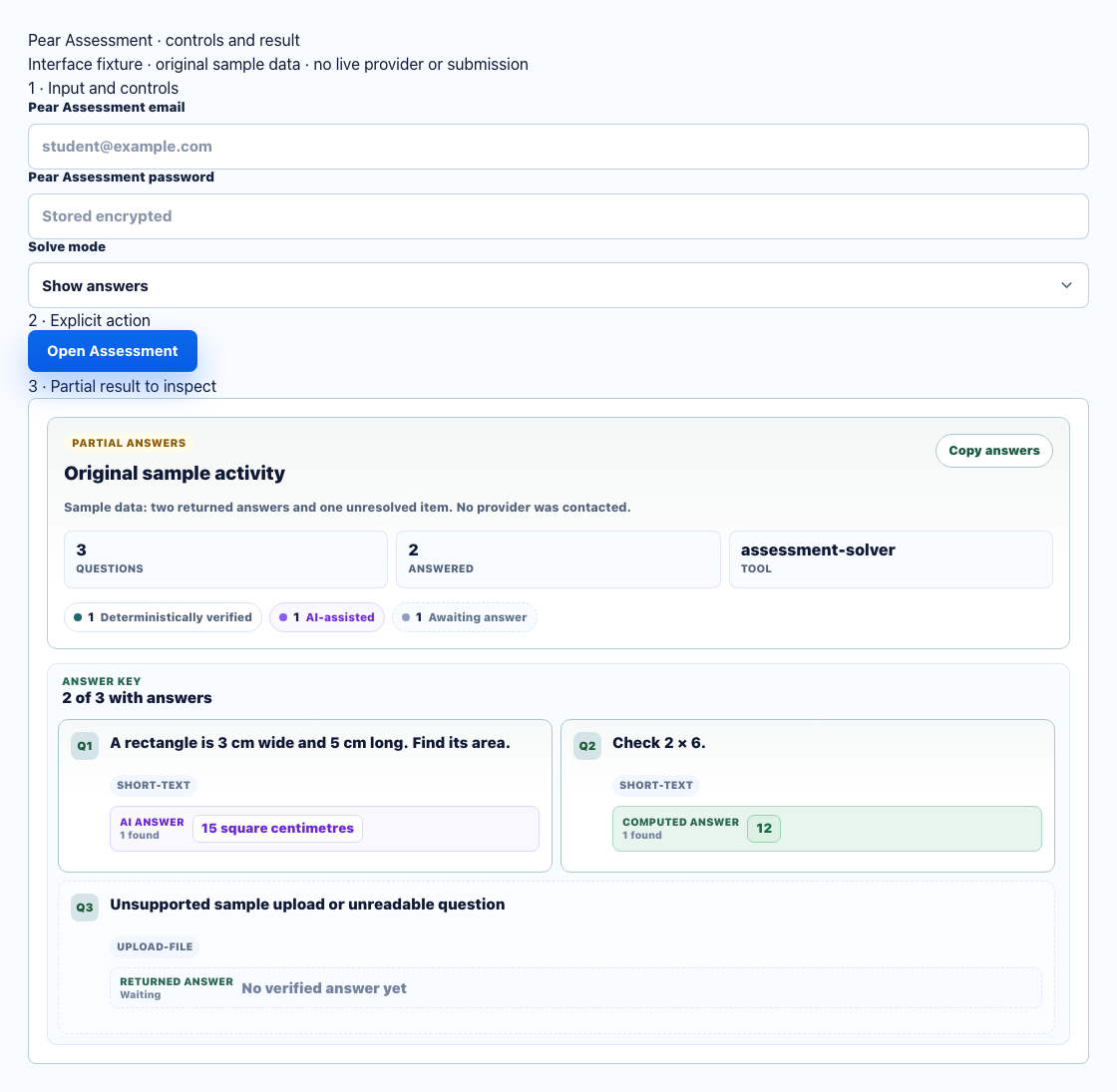
- Use a Pear Assessment student login and select an unfinished assessment.
- Check Show answers versus Solve and submit before running.
- Two resolved questions and one unsupported upload item remain a partial result.
A clear workflow from source to result
- 1Connect Pear Assessment
Connect the Pear Assessment student account.
- 2Choose an assessment
Select the exact unfinished assessment.
- 3Set scope and mode
Pick current or entire scope and preview or submit mode.
- 4Start or schedule
Run now or save once, daily, or weekly timing.
Keep the exact assessment and answer source in view
Choose the unfinished assessment, scope, mode, accuracy, and pacing before a run begins.
Show Answers preview
Review supported answers without submitting the selected assessment.
Solve & Submit
Complete supported questions with the saved scope, accuracy, and pacing.
Current or entire assessment
Limit the run to the current unfinished question or include the full supported set.
Run controls
Choose intended accuracy and the time between supported answers.
Schedule selected work or all open assessments
Save one assessment once or discover unfinished work on a recurring schedule.
One-time selected assessment
Schedule the exact selected assessment once at a chosen date and time.
All open assessments
Discover eligible unfinished assessments at run time instead of saving one fixed item.
Unattended confirmation
Confirm any saved Solve & Submit mode that can run while the dashboard is closed.
See how each Pear Assessment answer was resolved
The result view separates strong source data from assistance and incomplete results.
Provider-backed
The provider returned a supported answer for the question.
Assisted
Eligible assistance was used only after provider lookup remained unresolved.
Partial coverage
Some answer data exists, but the question still needs review.
Unresolved
No supported answer was available, so the question remains unresolved.
Know what is connected, selected, and scheduled
The runner keeps the connected account, selected assessment, saved mode, coverage, and future timing visible before consequential actions.
- Linked account stays visible
- Exact assessment is named
- Preview and submission modes are separate
- Future timing is confirmed before save
Comparing several platforms or tool types? Use the school hacks and answer tools field guide.
Pear Assessment Show Answers vs. Solve & Submit
Both modes use the selected assessment, but only Solve & Submit completes and submits supported questions.
Show Answers
- Supported answer preview
- Current question or entire assessment
- No submission
Solve & Submit
- Supported question completion
- Accuracy and pacing settings
- Run now or unattended schedule
Pear Assessment FAQ
What is the Pear Assessment Runner?
It loads unfinished assessments from a linked student account. Choose the exact assessment, select Show Answers or Solve & Submit, then run now or save a schedule.
Is Edulastic now Pear Assessment?
Yes. Edulastic is now Pear Assessment. Existing StudyOutlaws links keep the edulastic URL for compatibility; the visible tool name is Pear Assessment.
Does Pear Assessment require a connected account?
Yes. A linked Pear Assessment student account is required to load the unfinished assessments available to that account.
How do the two modes differ?
Show Answers previews supported answers without submitting. Solve & Submit completes and submits supported questions with the selected settings.
How are Pear Assessment answers selected?
The runner prioritizes provider-backed answers. Eligible assistance is used only after provider-backed lookup remains unresolved, and partial results stay labeled.
Can I schedule Pear Assessment work?
Yes. Schedule the exact assessment once, or use All open assessments for daily or weekly discovery at run time.
Can a saved schedule submit while I am away?
Yes. A Solve & Submit schedule can run while the dashboard is closed, so the interface asks you to confirm unattended submission before saving.