

Run training sessions or open an unfinished assessment
Membean Normal Session runs configured training with the duration, accuracy range, and pacing you choose. Start immediately or save a once, daily, or weekly schedule.
Assessment Session loads unfinished assessments and offers Controlled View, Backend Only, and Answers Only. Each mode makes its start, timing, and submission behavior explicit.
Both tools use the Membean student account marked In use. Check the active account and mode before starting or scheduling work.
Membean: browser tools and dashboard setup
Dashboard tools
Training and assessment tools
Tools for vocabulary training and supported assessment questions, with separate session controls.
- Auto answer and answer highlighting
- Accuracy, writing and timing controls
- Assessment answers and highlight shortcut
Your input, setup and result
Ultimate or above · No task credits for this action. Compare current allowances and plans.
- What you need
- A linked Membean student login and a training duration. Assessments use the separate Assessment Session tool and require an unfinished assessment.
- What to do
- Connect the intended account, choose duration and pacing, then explicitly start a session or save a schedule.
- What to check
- Review the session status and recorded training result. Starting a session does not confirm completion or a score.
- If it does not work
- If sign-in expires, reconnect Membean in the dashboard. If no unfinished assessment appears, check the selected account and assessment availability before retrying.
The Chrome extension works with a supported training or assessment page you have open. Dashboard sessions have separate connection, timing and scheduling controls.
Controls and result walkthrough
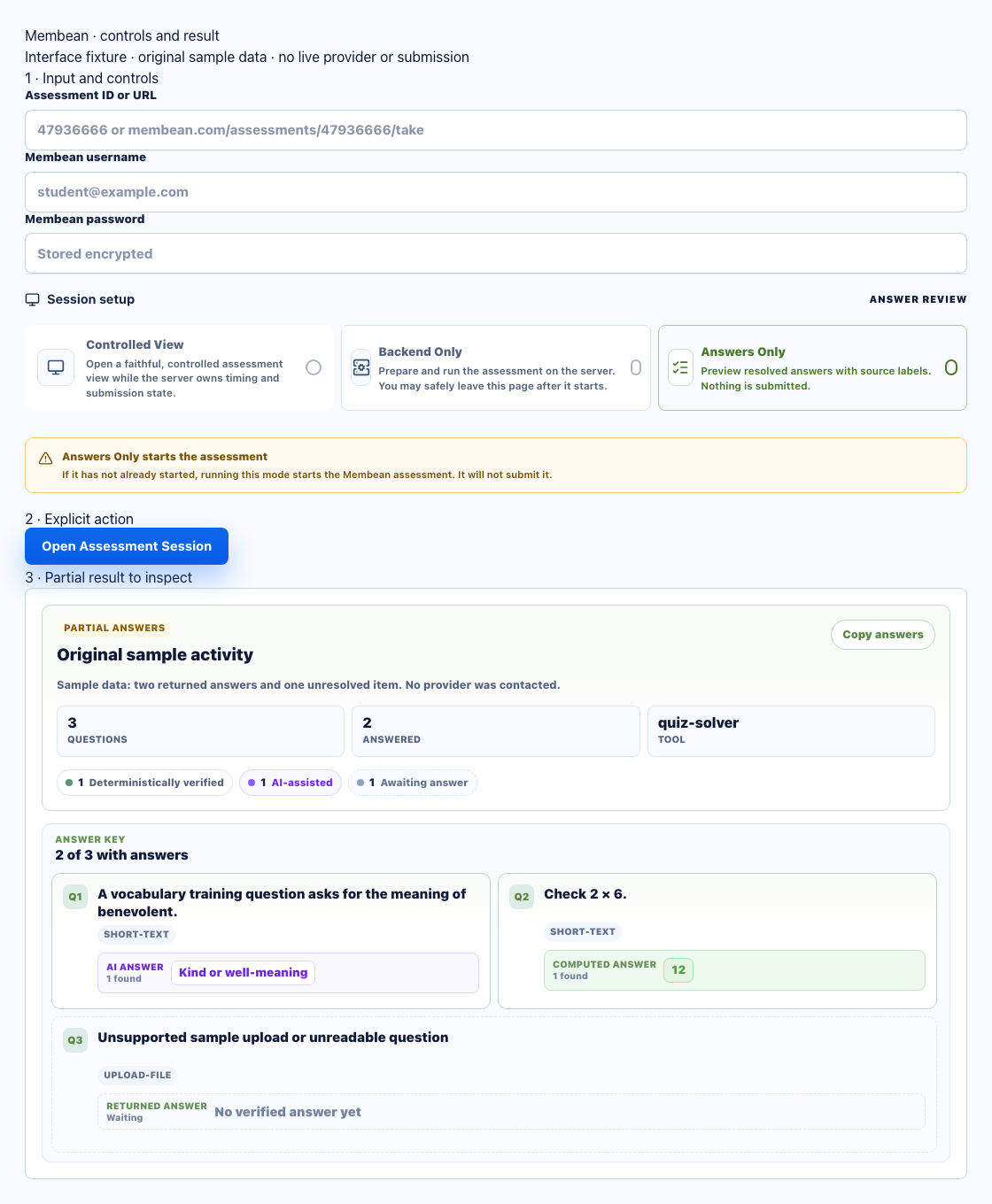
- Assessment Session has Controlled View, Backend Only, and Answers Only modes, separate from Normal Session training.
- Answers Only does not submit, but can start an unopened assessment. Check the mode and start behavior before running.
- Inspect the final session/assessment state. Returned answers do not prove submission.
Membean dashboard preview
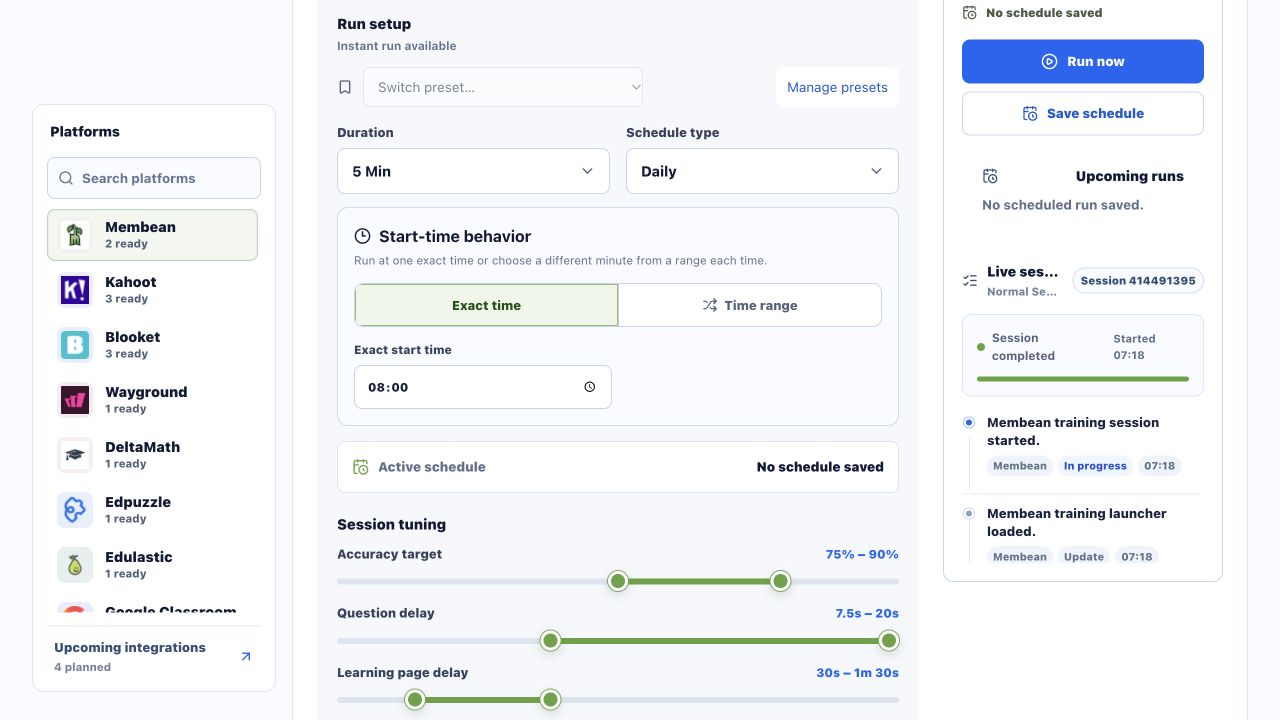
Dashboard screenshot captured on .
A clear workflow from source to result
- 1Choose the account
Connect Membean and confirm which saved account is active.
- 2Choose the workflow
Select Normal Session or an unfinished Assessment Session.
- 3Set behavior
Review duration, accuracy, delays, mode, score, and timing.
- 4Run or schedule
Start now, save a schedule, or reopen supported active work.
Control Membean training length and pacing
Keep duration, accuracy, activity, and cancellation controls together.
Session duration
Choose a requested training length from 5 to 60 minutes.
Accuracy control
Set an accuracy range instead of forcing one fixed percentage.
Two pacing ranges
Tune question delay separately from the time spent on learning pages.
Run or schedule
Start now or save once, daily, or weekly timing for the active account.
Understand each assessment mode before starting
Load an unfinished assessment and choose the mode that matches what you intend to do.
Controlled View
Open a dedicated owner-only assessment URL with server-maintained timing and state.
Backend Only
Prepare and run the assessment on the server, with timing that can lead to submission.
Answers Only
Display resolved answers with source labels without submitting them.
Keep account, mode, and session state clear
Confirm what starts, what stays review-only, and which account owns the work.
Selected assessment
Open assessment details remain visible before the session begins.
Mode labels
The dashboard separates review-only answers from modes that can run or submit.
Live state
Recent activity and any active session stay visible with cancel or resume actions when supported.
Account ownership
Schedules and results stay tied to the Membean account currently marked In use.
Know what will start or submit
The dashboard is designed to make consequential mode differences visible before a session begins.
- Review-only and submission modes are separate
- Schedules name the active account
- Activity and cancellation state remain visible
- Follow your school and platform rules
Comparing several platforms or tool types? Use the school hacks and answer tools field guide.
Membean Normal Session vs. Assessment Session
Use Normal Session for training automation. Use Assessment Session for an open quiz or assessment and choose how it should display or run.
Normal Session
- 5–60 minute training
- Accuracy and pacing ranges
- Run now or schedule
Assessment Session
- Choose an unfinished assessment
- Three supported modes
- Target and timing controls
Membean FAQ
What is a Membean autosolver?
A Membean autosolver runs a configured training session with the connected student account. Choose duration, accuracy, and pacing, then run now or save a schedule.
What Normal Session controls are available?
Normal Sessions support 5 to 60 minutes, an adjustable accuracy range, a question delay, and a separate learning-page delay.
Can I schedule Membean sessions?
Yes. Create a one-time, daily, or weekly schedule. Weekly schedules can use selected weekdays and run with the account currently marked In use.
Does Answers Only submit an assessment?
Answers Only displays resolved answers with source labels and does not submit them. Loading answers can start an assessment that has not started, so the dashboard shows a warning first.
What is Controlled View?
Controlled View opens a dedicated owner-only assessment page while the server maintains timing and submission state. An active saved view can be verified and reopened.
What is Backend Only mode?
Backend Only prepares and runs the assessment on the server. You can leave after it starts, and the chosen timing can lead to submission.