

Choose the exact assignment and video before taking action
Edpuzzle Assignment Runner starts with the linked student account, then asks you to choose the unfinished assignment and exact video before opening its question set.
Show Answers provides a read-only answer view. Solve & Submit runs supported questions with selected accuracy and pacing. Provider-backed answers are checked first, and eligible unresolved questions can receive visibly labeled assistance.
Choose Current question for the active unfinished question or Entire video for all supported questions in the selected video. Partial coverage and unresolved items stay visible.
Edpuzzle: browser tools and dashboard setup
Dashboard tools
Video questions and playback controls
Answer supported video questions and choose how to move through the activity.
- Answers, highlighting and autosolve
- Automatic progression and segment skipping
- Full-video timeline controls
Your input, setup and result
Ultimate or above · No task credits for this action. Compare current allowances and plans.
- What you need
- A linked Edpuzzle account using email/password or the supported Google connection flow. Other school SSO providers are not covered.
- What to do
- Connect a supported login, load work, select the assignment and video, then choose Preview or Solve and submit.
- What to check
- Inspect assignment status, submitted answers, unanswered written items and watch-completion status separately. A returned answer list does not confirm video completion.
- If it does not work
- Reconnect an expired session and reload the assignment. Answer unresolved written items in Edpuzzle; confirm the final platform status before considering it complete.
The dashboard runs selected video questions on the server; extension playback tools affect the current tab separately.
Controls and result walkthrough
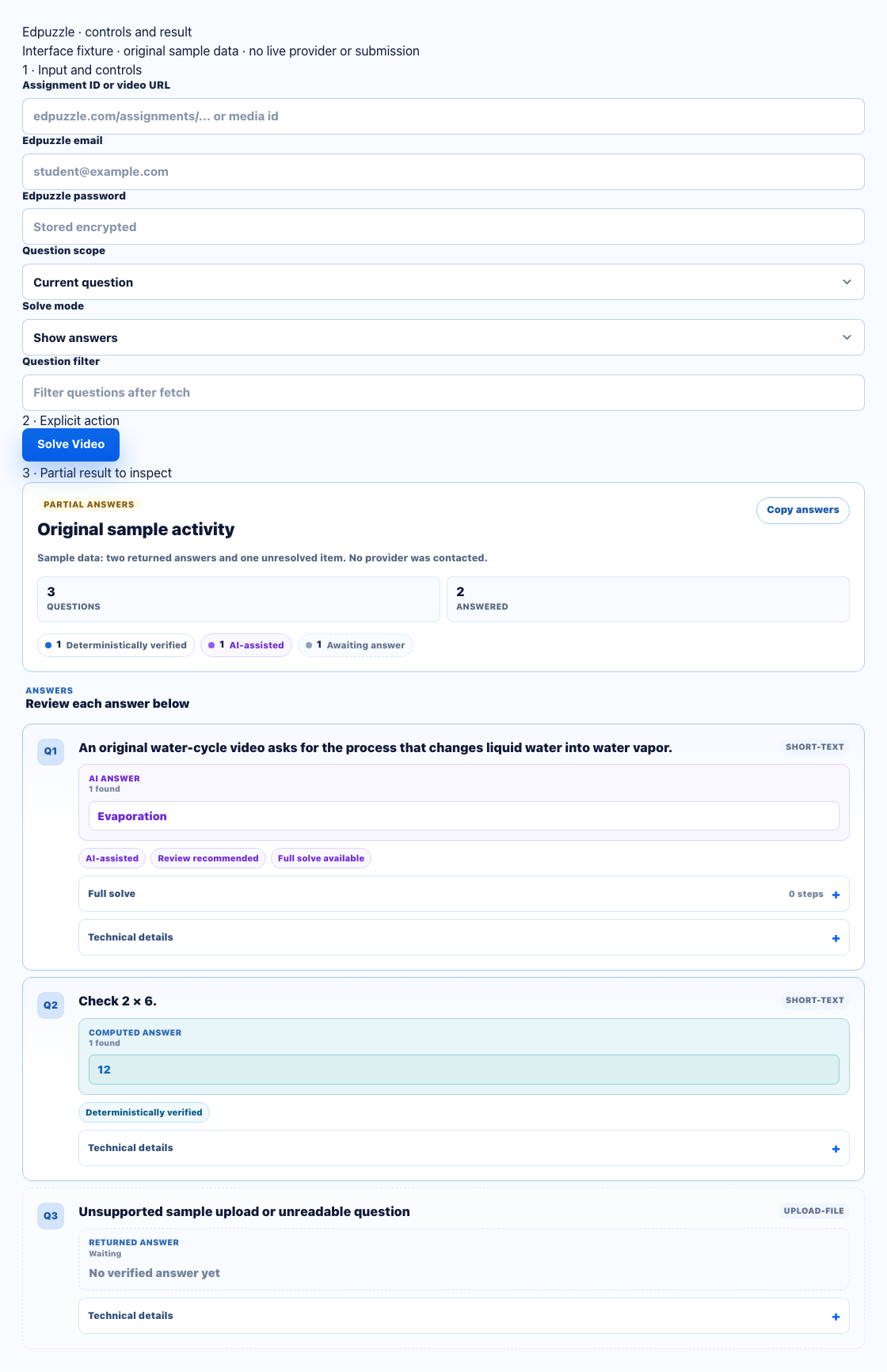
- Connect a compatible login and choose the assignment/video in the full dashboard.
- Show answers previews; Solve and submit is a separate action.
- Review written/unanswered items and the final assignment/playback status separately.
A clear workflow from source to result
- 1Connect Edpuzzle
Connect the student account and confirm it is ready.
- 2Choose the work
Select one unfinished assignment and its exact video.
- 3Set scope and mode
Pick Current question or Entire video, then choose a mode.
- 4Run or schedule
Start immediately or save supported future timing.
Keep answer coverage and run behavior explicit
Load unfinished class work, select the exact video, and decide whether to review or submit.
Preview without submitting
Open a read-only list for the current question or the entire selected video.
Solve supported questions
Complete and submit supported questions in a paced session.
Visible answer sources
Use provider-backed answers first and label eligible assistance when it is needed.
Accuracy and pacing
Choose accuracy behavior and time between answers for submission runs.
Choose selected work or all-open scheduling
Run one selected video now or discover eligible unfinished work later.
Run now
Start Show Answers or Solve & Submit for the selected assignment and video.
Schedule selected work
Save one exact assignment and video for a future one-time run.
Process all open work
Use daily or weekly discovery for eligible unfinished assignments at run time.
Avoid hiding incomplete Edpuzzle results
See what was found, how it was found, and what still needs review.
Verified
Provider-backed answers receive the strongest source label.
Assisted
Eligible unresolved questions can receive clearly identified AI assistance.
Partial
Some available answer data still needs review before use.
Unresolved
Questions without supported answer data remain unresolved.
Clear coverage instead of false certainty
StudyOutlaws does not claim every Edpuzzle question has a guaranteed answer. Coverage and source confidence remain part of the result.
- Exact assignment and video selection
- Show Answers stays read-only
- Source labels remain visible
- Unresolved questions are not hidden
Comparing several platforms or tool types? Use the school hacks and answer tools field guide.
Edpuzzle Show Answers vs. Solve & Submit
Both modes use the same selected assignment and video, but only Solve & Submit completes supported questions.
Show Answers
- Read-only result list
- Current question or entire video
- Does not submit
Solve & Submit
- Supported questions
- Accuracy and pacing controls
- Can run now or on a schedule
Edpuzzle FAQ
What is an Edpuzzle solver?
It helps you choose an unfinished assignment and exact video, then preview supported answers or run a paced Solve & Submit session.
Does the Assignment Runner require an account?
Yes. Connect the Edpuzzle student account so unfinished assignments and videos can load.
Why do I choose both an assignment and a video?
The assignment identifies the class work, while the video or task identifies the exact question set for the run.
Does Show Answers submit anything?
No. Show Answers is read-only. Solve & Submit is the mode that completes and submits supported questions.
How are Edpuzzle answers found?
Provider-backed answers are prioritized. AI assistance is used only for eligible unresolved questions, and partial coverage remains visible.
Can Edpuzzle assignments be scheduled?
Yes. Schedule one selected assignment and video once, or use an all-open daily or weekly schedule that discovers eligible unfinished work at run time.