
 Amplify guide
How to get Amplify lesson answers
Open an Amplify lesson on student.amplify.com with the StudyOutlaws extension open and press Read lesson. The extension sends the lesson data the page already loaded to StudyOutlaws, which works out an answer for each screen.
The panel follows you through the lesson and shows the answer for the screen you're on, with where it came from: the answer key, a teacher sample or a graph estimate. Screens with no answer in the lesson say None.
Reading a lesson costs 0.5 credits, and reading the same lesson again within four hours is free. The extension never types, chooses or submits anything.
How to use it
- Install the extension
Use the Chrome Web Store link on the StudyOutlaws Extension page.
- Sign in
Use your StudyOutlaws account; a Free account is enough.
- Read the lesson
Open the lesson on student.amplify.com and press Read lesson.
- Answer it
Move through the screens and enter each answer yourself.
What you will see
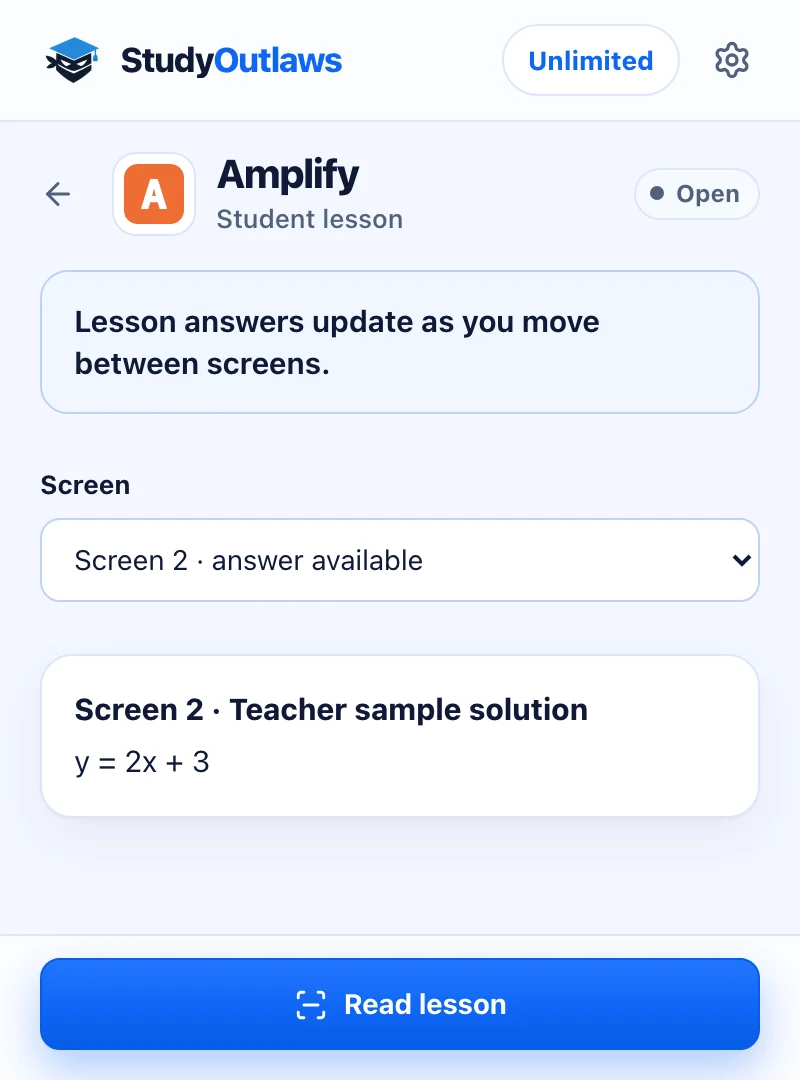
Open the lesson on student.amplify.com and press Read lesson once.
The panel follows the screen you're on, or you pick it from the list, and names where the answer came from, here a teacher sample solution.
Enter the answer in the lesson yourself. The extension never types, chooses or submits anything.
What the extension shows on Amplify
Press Read lesson once; the answers then update as you move between screens.
- Answer key
- The lesson's own answer key for the screen.
- Teacher samples
- The sample answer the lesson gives teachers.
- Graph estimates
- A value read off the curve the lesson draws.
- Screen by screen
- The panel follows the screen you're on, or you pick it from a list.
Set up the Amplify Chrome extension
Amplify lesson answers
Reads an Amplify lesson once and shows the answer for each screen, from the lesson's answer key or teacher samples.
- Read lesson in one press
- Answer for the screen you're on
- Names where each answer came from
Limits of the Amplify tools
It shows the answers the lesson holds and leaves the work to you.
- It works on Amplify student lessons at student.amplify.com.
- It never types, chooses or submits anything in the lesson.
- Screens that ask for your own words often have no answer, and say None.
- Only the lesson data and page text are sent, never Amplify account details or cookies.
Comparing several platforms? Read the school hacks guide
What it answers on Amplify
The extension reads the lesson once and shows an answer for each screen that has one. You enter it yourself.
Amplify lesson screens
- Screens with an answer key
- Teacher sample solutions and responses
- Values read off the lesson's own curve
Your own work
- Screens that ask for your own words
- Typing or choosing in the lesson
- Pressing the lesson's buttons
Amplify FAQ
How do I get Amplify answers?
Install the StudyOutlaws Chrome extension, sign in and open your lesson on student.amplify.com. Press Read lesson in the extension, and the panel shows the answer for the screen you're on.
Is there an Amplify hack or cheat that works?
StudyOutlaws doesn't change your work or scores. The extension shows the answers the lesson itself holds, such as its answer key and teacher samples, and you enter them yourself. Follow your school's rules.
Where do the Amplify answers come from?
From the lesson: its answer key, the teacher sample solution or response, or a value read off the curve the lesson draws. The panel names the source for each screen.
Does it fill in Amplify lessons for me?
No. It shows each screen's answer in the panel. Typing, choosing and pressing buttons in the lesson stay with you.
Is the Amplify extension free?
Yes, on every plan. Reading a lesson costs 0.5 credits, and reading the same lesson again within four hours is free.
Set up Amplify in Chrome.
Install the extension, sign in and open an Amplify lesson.
Other platform guides
 Membean6 min read
 Kahoot8 min read
 Blooket7 min read
 Wayground / Quizizz6 min read
 DeltaMath6 min read
 Edpuzzle6 min read
 Pear Assessment6 min read
 Google Classroom6 min read
 IXL6 min read
 Edmentum4 min read
 Gimkit4 min read
 Khan Academy4 min read
 Quizlet Live4 min read
 Google Forms4 min read
 NoRedInk4 min read
 AP Classroom4 min read
 Savvas Realize3 min read
 Canvas4 min read
StudyOutlaws is not affiliated with or endorsed by Amplify Education. Teacher samples and graph estimates are examples, so check them.