
 More sites in the Chrome extension
Get Amplify lesson answers with the extension
Open an Amplify lesson on student.amplify.com with the StudyOutlaws extension and press Read lesson. StudyOutlaws reads the lesson and lists an answer for each screen, from the lesson's answer key, its teacher sample or a graph estimate. You enter the answers yourself. Reading a lesson costs 0.5 credits once.
- Access
- Any signed-in account, including Free
- Cost
- 0.5 credits per lesson
- Buttons
- Read lesson
- Where
- Chrome extension on an Amplify student lesson
How it works
- Open the lesson
Open your lesson on student.amplify.com and let it load.
- Read the lesson
Open the extension and press Read lesson once.
- Follow the screens
Move through the lesson. The panel shows the answer for the screen you're on.
What you will see
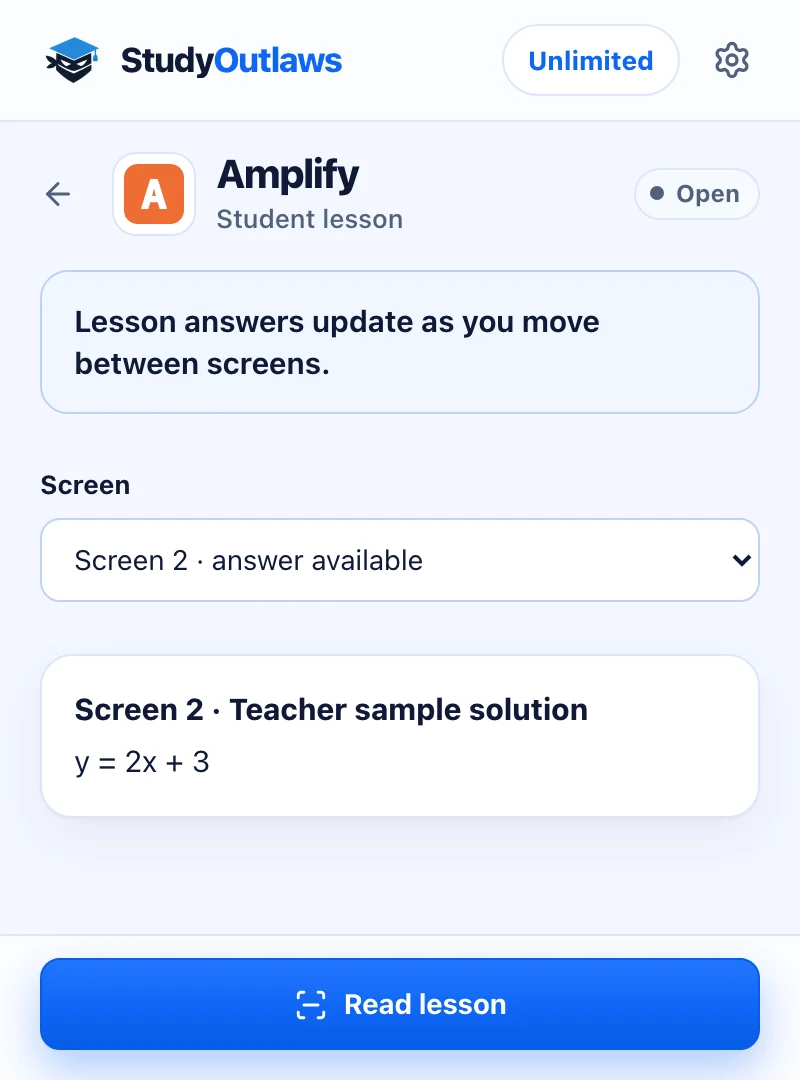
Open the lesson on student.amplify.com and press Read lesson once.
The panel follows the screen you're on, or you pick it from the list, and names where the answer came from, here a teacher sample solution.
Enter the answer in the lesson yourself. The extension never types, chooses or submits anything.
Install the extension and sign in
- Install it
Open the Extension page on this site and add StudyOutlaws to Chrome from the Chrome Web Store.
- Pin it
Pin the extension to the toolbar so it's one click away.
- Sign in
Sign in with your StudyOutlaws account. A Free account is enough to see answers.
- Reload the page
If the lesson was already open, reload it before you press Read lesson.
How to see answers in an Amplify lesson
- Open the lesson
Open a lesson as a student on student.amplify.com.
- Press Read lesson
The extension reads the lesson data the page already loaded and sends it to StudyOutlaws, which works out an answer for each screen.
- Read the screen's answer
The panel shows the screen number, where the answer came from and the answer. When you move to another screen, it follows. If it can't tell which screen you're on, choose the screen from the list.
- Enter it yourself
Type or choose the answer in Amplify. The extension never fills anything in or presses a button in the lesson.
Where each answer comes from
- Answer key: the lesson's own answer key for that screen.
- Teacher sample solution or Teacher sample response: the sample answer the lesson gives teachers.
- Graph estimate from lesson curve: a value read off the curve the lesson draws.
- None: the lesson has no answer key or sample for that screen, often a screen that asks for your own words. Answer it yourself.
If it doesn't work
- It says Open an Amplify student lesson first: open a lesson page on student.amplify.com, then press Read lesson again.
- It says The lesson is too large to scan: the lesson has more data than the extension sends. Answer it yourself.
- The panel shows the wrong screen: choose the screen you're on from the list.
- It says you're out of credits: wait for your credits to reset, or upgrade your plan.
How much Amplify answers cost
Read lesson works on every plan. Reading a lesson costs 0.5 credits, and reading the same lesson again within four hours is free. A lesson with no readable answers costs nothing. Free includes 15 credits a week. Pro includes 100 credits a day, and Ultimate is unlimited.
Limits of the Amplify tools
The extension only shows answers; it never types, selects or submits in the lesson. Teacher samples and graph estimates are examples, not graded keys, so check them. Only the lesson data and the text on the page are sent, never Amplify account details or cookies.
Common questions
Does it answer Amplify lessons for me?
No. It shows each screen's answer in the panel, and you enter it yourself.
Where do the Amplify answers come from?
From the lesson itself: its answer key, the teacher sample or the curve the lesson draws. The panel names the source for each screen.
Is it free on Amplify?
Read lesson works on every plan for 0.5 credits per lesson. Reading the same lesson again within four hours is free.
Why does a screen say None?
The lesson has no answer key or sample for that screen, which is common for screens that ask you to explain your thinking. Answer those yourself.
Ready to try it?
Questions along the way? Ask support and include this guide's link.
Related guides
- StudyOutlaws Chrome extension setup and supported sites4 min read
- Getting started with StudyOutlaws4 min read
 Get Savvas Realize answers with the extension3 min read
 Get Canvas quiz answers with the extension4 min read
 Get Khan Academy answers and Autosolve with the StudyOutlaws extension4 min read
 Get Google Forms quiz answers with the extension4 min read