

Updated Oct 1, 2026 · 6 min read
Use a Membean Assessment Session
Choose an unfinished Membean assessment and review the mode before starting. Answers Only may start an unopened assessment even though it does not submit; controlled and backend modes have separate timing behavior.
- Access
- Ultimate
- Task credits
- No task credits for this dashboard action
- Modes
- Controlled View, Backend Only, Answers Only
- Account
- Linked Membean student login
How it works
- 1Choose assessment
Load unfinished assessments for the intended account.
- 2Review mode and timing
Check whether the mode starts, submits or waits for a continue action.
- 3Inspect final status
Confirm the assessment state and unresolved answers in Membean.
Controls and result walkthrough
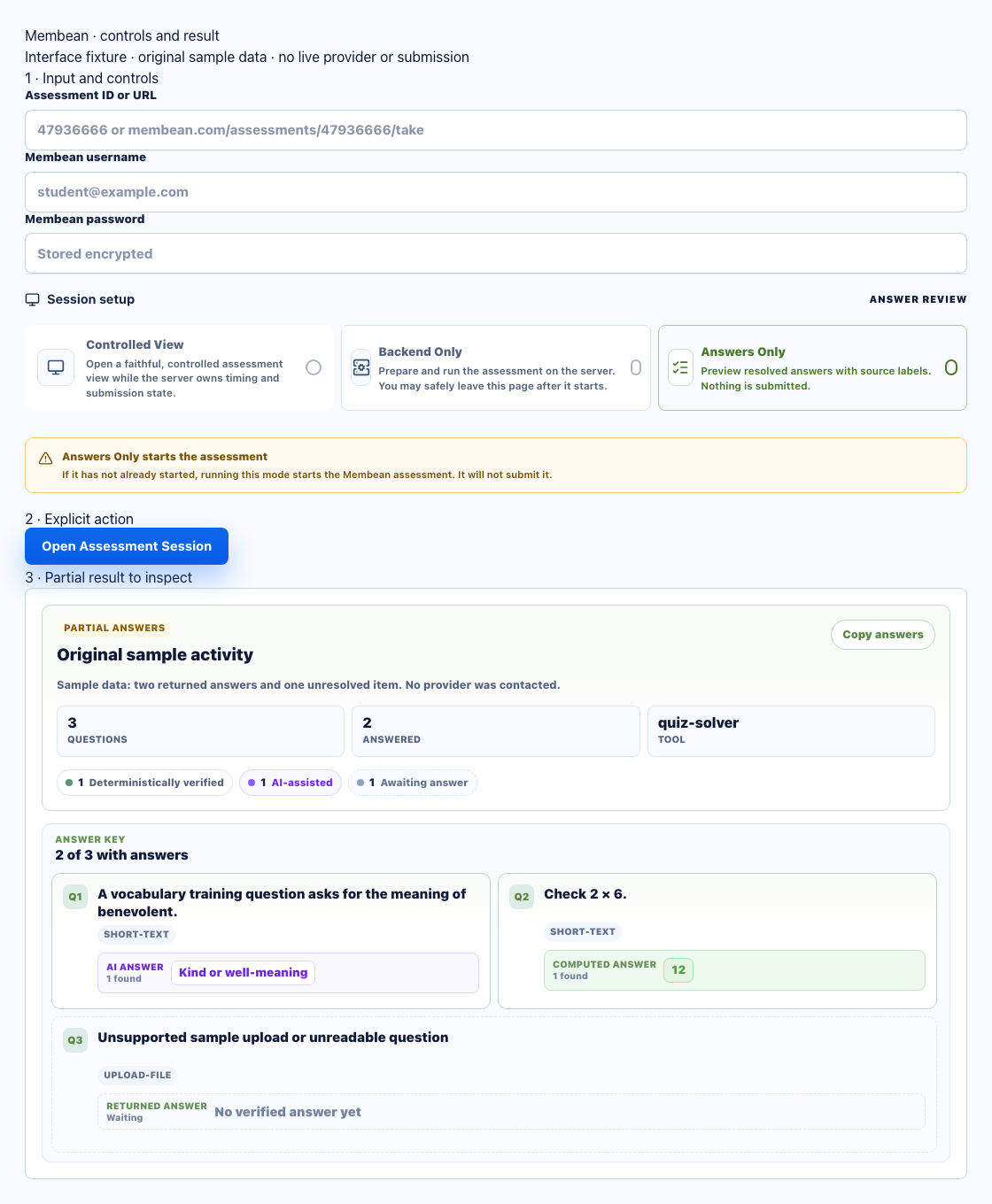
- Assessment Session has Controlled View, Backend Only, and Answers Only modes, separate from Normal Session training.
- Answers Only does not submit, but can start an unopened assessment. Check the mode and start behavior before running.
- Inspect the final session/assessment state. Returned answers do not prove submission.
Mode behavior
- Controlled View: opens the controlled assessment workflow and uses the selected timing/continue behavior. Review the visible assessment state before submitting.
- Backend Only: runs the supported assessment workflow on the server using the saved account and timing settings.
- Answers Only: returns available answers without submitting the assessment. It can still start an assessment that has not yet been started; use it only when starting is intended.
Start, submit and continue
Starting, answering and submitting are separate states. Minimum/maximum/manual timing options affect when the run can submit or wait. If the run asks you to continue, check the current assessment and take that action explicitly. Manual submit timing is not available for scheduled assessment runs.
Assessment recovery
- No unfinished assessment: check the selected account and whether the assessment is open in Membean.
- Expired session: reconnect Membean, then reload assessments.
- Waiting for continue: return to the active assessment workflow and review the displayed state before continuing.
- Submission not confirmed: inspect Membean before retrying. A returned answer list does not prove completion.
Ready to try it?
Open in dashboard