
 More sites in the Chrome extension
Get NoRedInk answers with the extension
Open a NoRedInk practice, quiz or diagnostic question with the StudyOutlaws extension. The answer is marked on the question, or press Show answer. On Pro or Ultimate, Autosolve enters it and presses Submit answer for you.
- Access
- Any signed-in account, including Free
- Cost
- 0.5 credits per answer
- Buttons
- Show answer, or Fill in answer on Pro
- Where
- Chrome extension on NoRedInk quiz pages
How it works
- Open a question
Start NoRedInk practice, a quiz or a diagnostic.
- See the answer
Read the answer marked on the question, or press Show answer.
- Submit it
Enter the answer and press Submit answer, or let Autosolve do it on Pro.
What you will see
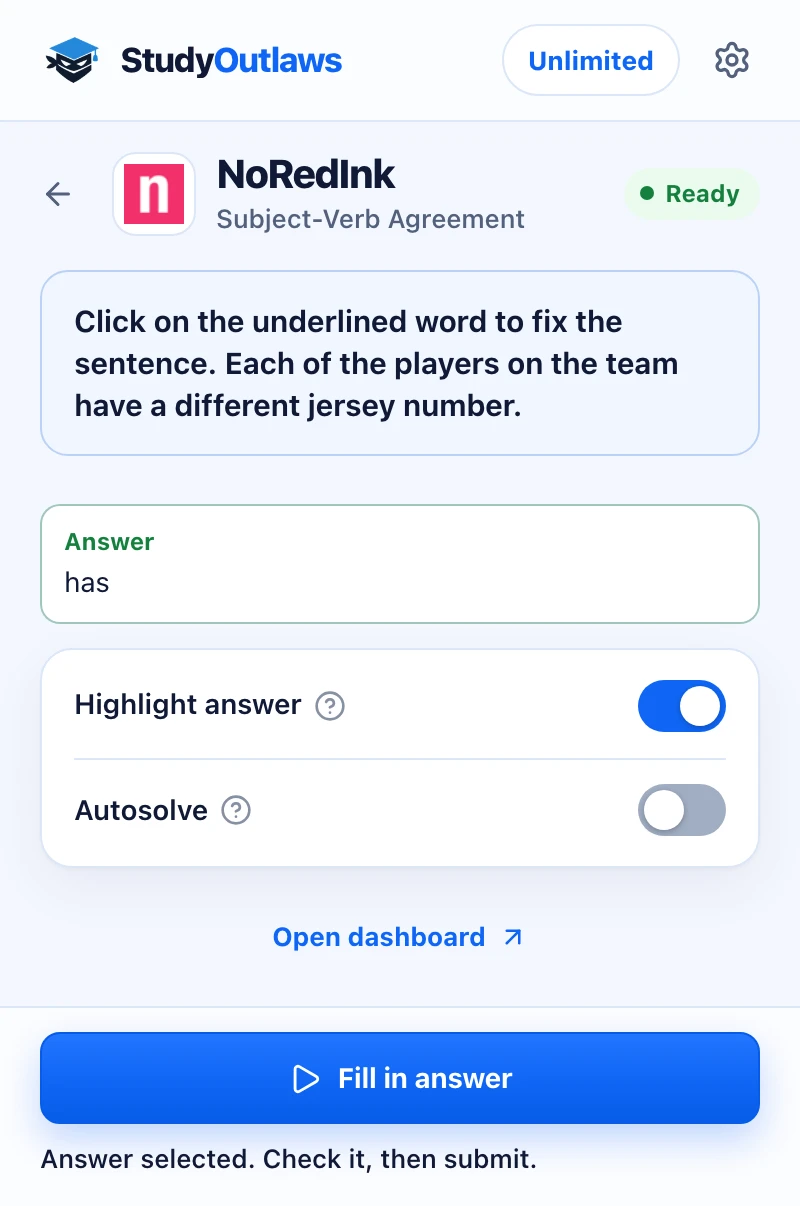
Open a NoRedInk quiz question. The panel shows the question and its answer, here the corrected word has.
Highlight answer marks it on the page. Fill in answer selects it for you on Pro.
Check the answer, then submit. Writing assignments such as Quick Writes stay for you to write.
Install the extension and sign in
- Install it
Open the Extension page on this site and add StudyOutlaws to Chrome from the Chrome Web Store.
- Pin it
Pin the extension to the toolbar so it's one click away in NoRedInk.
- Sign in
Sign in with your StudyOutlaws account. A Free account is enough to see answers.
- Reload NoRedInk
If a question was already open, reload the page so the extension can read it.
How to get answers on NoRedInk
- Open a question
Start practice, a quiz or a diagnostic. The extension reads the question NoRedInk loads on the page.
- Open the extension
The NoRedInk panel shows the question. With Highlight answer on, the answer is marked on the page: the right option is outlined, or a hint shows the text to enter.
- Show or fill in the answer
Press Show answer to see it. On Pro or Ultimate the button says Fill in answer and enters it for you without submitting.
- Submit
Check the answer and press Submit answer. With Autosolve on, the extension submits and moves on for you.
Which NoRedInk questions it answers
- Multiple choice and word choice, where you pick the right word in a sentence.
- Highlighting words or phrases, and tagging each sentence of a paragraph.
- Punctuation, capitalization, and formatting titles with italics, quotation marks or capitals.
- Sentence edits, including MLA in-text citations.
- Outlines, where you fill blanks or pick an option, and rearranging sentence pieces, such as misplaced modifiers or active voice.
- Quick Writes and Guided Drafts are your own writing. The panel says Writing assignment and never drafts or submits them.
- A question type the extension doesn't know shows Unsupported question type. Answer it yourself.
Answer settings in the panel
- Highlight answer: on at first. It looks up each question as it opens and marks the matching choice or shows a text hint. Each lookup costs credits.
- Autosolve (Pro or Ultimate): enters the answer, presses Submit answer, and after a miss presses Try a similar problem. It also works through tutorials step by step, and presses Let's go! on a diagnostic and Okay, I'm ready! before a quiz review. It never presses Skip this tutorial.
- Answer delay: shown when Autosolve is on. It sets how long Autosolve waits before each step, from 0 to 5 seconds.
- On the Free plan, Autosolve shows a Pro lock. Show answer and Highlight answer still work.
If it doesn't work
- The panel says Waiting for a question: open a question page and reload it. Tutorials, results and the finished page aren't questions.
- The panel says Unsupported question type: answer this one yourself. The next supported question works as usual.
- The panel says Writing assignment: that's expected. Quick Writes and Guided Drafts stay yours.
- Autosolve stopped on Try a similar problem: it stops after three misses in a row on a quiz. Read NoRedInk's tip, then press the button yourself.
- Autosolve stopped on a question NoRedInk sent back: it stops answering a question that keeps coming back. Use NoRedInk's feedback and answer it yourself.
- It says you're out of credits: wait for your credits to reset, or upgrade your plan.
How much the NoRedInk tools cost
Show answer and Highlight answer work on every plan. Each answer costs 0.5 credits. Free includes 15 credits a week, about 30 answers. Pro includes 100 credits a day, and Ultimate is unlimited. Fill in answer and Autosolve need Pro or Ultimate.
When NoRedInk shows the correct answer after a miss, or on a finished quiz's results, the extension sends it to StudyOutlaws free of charge. Confirmed answers are then used before AI.
Limits of the NoRedInk tools
The extension works only on NoRedInk quiz pages, where practice, quizzes and diagnostics run. When no confirmed answer is known, AI answers with NoRedInk's lesson for the skill, and AI answers can be wrong. Your writing assignments are never written or submitted.
Common questions
Can it answer NoRedInk automatically?
Yes, on Pro or Ultimate. Autosolve enters the answer after your delay, presses Submit answer and moves on to the next question.
Where do the NoRedInk answers come from?
Confirmed answers come first. When NoRedInk shows the correct answer after a miss, or on a finished quiz's results, the extension sends it to StudyOutlaws for free. When no confirmed answer is known, AI answers, and AI answers can be wrong.
Does it do NoRedInk tutorials?
With Autosolve on, it works through tutorials step by step and never presses Skip this tutorial. With Autosolve off, you take them yourself.
Does it write Quick Writes or Guided Drafts?
No. StudyOutlaws doesn't write or submit NoRedInk writing assignments.
Is it free on NoRedInk?
Yes. Show answer works on every plan for 0.5 credits per answer. Autosolve needs Pro or Ultimate.
Ready to try it?
Questions along the way? Ask support and include this guide's link.
Related guides
- StudyOutlaws Chrome extension setup and supported sites4 min read
- Getting started with StudyOutlaws4 min read
- Run now, sessions and scheduling3 min read
 Get Google Forms quiz answers with the extension4 min read
 Get AP Classroom answers with the extension4 min read
 Get Khan Academy exercise answers with the StudyOutlaws extension4 min read