
 More sites in the Chrome extension
Get Google Forms quiz answers with the extension
Open a Google Forms quiz, open the StudyOutlaws extension and press Show answers. Each answer is marked on the form. On Pro or Ultimate, Fill in answers and Autosolve enter them for you. The extension never submits the form.
- Access
- Any signed-in account, including Free
- Cost
- 0.5 credits per new answer
- Buttons
- Show answers, or Fill in answers on Pro
- Where
- Chrome extension on the form you fill in
How it works
- Open the quiz
Open the Google Form you need to fill in and let it load.
- Show the answers
Open the extension and press Show answers, or Fill in answers on Pro.
- Check and submit
Read every answer on the form, then press Submit yourself.
What you will see
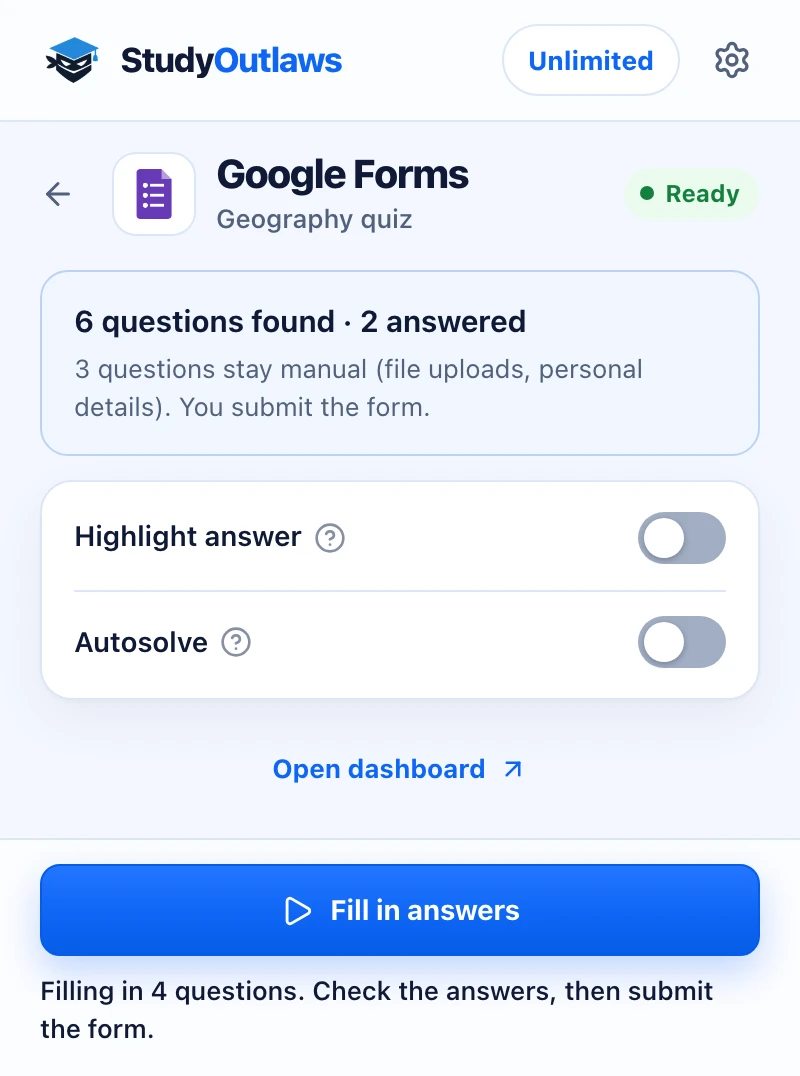
Open the form's respond page. The panel counts the questions it found and how many already have answers.
File uploads and personal details stay for you to fill in, and you always submit the form yourself.
Turn on Highlight answer to mark answers on the form. Fill in answers enters them on Pro, then you check and submit.
Install the extension and sign in
- Install it
Open the Extension page on this site and add StudyOutlaws to Chrome from the Chrome Web Store.
- Pin it
Pin the extension to the toolbar so it's one click away on the form.
- Sign in
Sign in with your StudyOutlaws account. A Free account is enough to see answers.
- Reload the form
If the form was already open, reload it. Until you do, the panel says Reload the form to activate the extension.
How to see answers on a Google Forms quiz
- Open the extension on the form
The Google Forms panel opens and counts the questions it found and how many are answered.
- Press Show answers
It looks up the questions on the page. The right option gets a Correct outline, and text boxes and dropdowns get a hint with the answer.
- Fill in the form
Pick the marked options and type the answers yourself. On Pro or Ultimate, press Fill in answers instead and the extension enters them.
- Check and submit
Read each answer before you press Submit. On a form with several sections, press Next yourself and use the extension again on the new section.
Which questions it answers
- Multiple choice, checkboxes and linear scales: the right option is outlined.
- Multiple choice grids and checkbox grids: the answer in each row is marked.
- Dropdowns: the option to choose is shown next to the dropdown.
- Short answer and paragraph: the answer is shown next to the box. A number or date box that rejects the format still shows the answer as a hint.
- File uploads, the Other text box and questions about you, such as name, email, class, student ID or phone number, stay manual. The panel tells you how many questions stay manual.
Answer settings in the panel
- Highlight answer: looks up each question you can see as you scroll, and marks its answer. It's off until you turn it on, because Google Forms also hosts surveys and sign-up forms, and each lookup costs credits.
- Autosolve (Pro or Ultimate): selects and fills answers question by question, working down the page. You submit the form.
- Answer delay: shown when Autosolve is on. It sets how long Autosolve waits before each answer, from 0 to 5 seconds.
- On the Free plan, Autosolve shows a Pro lock. Show answers and Highlight answer still work.
If it doesn't work
- The panel says Reload the form to activate the extension: reload the form tab, then open the extension again.
- The panel says Open a Google Forms quiz to scan its questions: open the form's fill-in page. The editor and results pages aren't supported.
- Some questions get no answer: one run looks up at most 40 new questions, so press Show answers again for the rest.
- An answer isn't filled in: enter the answer from the hint yourself. This can happen with number and date boxes.
- It says you're out of credits: wait for your credits to reset, or upgrade your plan.
How much the Google Forms tools cost
Show answers and Highlight answer work on every plan. Each new answer costs 0.5 credits, and an answer already found on the page isn't charged again. Free includes 15 credits a week, about 30 answers. Pro includes 100 credits a day, and Ultimate is unlimited.
Fill in answers and Autosolve need Pro or Ultimate.
Limits of the Google Forms tools
The extension never presses Submit, Next or Clear form. It answers from the question text with AI and doesn't read the form's answer key, so an answer can be wrong. Check every answer before you submit. It runs only on the page you fill in, never in the form editor.
Common questions
Does it submit the Google Form for me?
No. It never presses Submit, Next or Clear form. You check the answers and submit the form yourself.
Does it read the form's answer key?
No. It reads the questions and options on the page and works out each answer with AI. Check them before you submit.
Is it free on Google Forms?
Yes. Show answers works on every plan for 0.5 credits per new answer. Filling answers in needs Pro or Ultimate.
Does it work in the Google Forms editor?
No. It only works on the page where you fill in a form.
Ready to try it?
Questions along the way? Ask support and include this guide's link.
Related guides
- StudyOutlaws Chrome extension setup and supported sites4 min read
- Getting started with StudyOutlaws4 min read
- Run now, sessions and scheduling3 min read
 Get Google Classroom answers and turn work in3 min read
 Get NoRedInk answers with the extension4 min read
 Get AP Classroom answers with the extension4 min read