
 More sites in the Chrome extension
Get Khan Academy exercise answers with the StudyOutlaws extension
Install the extension, sign in and open a Khan Academy exercise. When a question appears, the correct choice is outlined, or the answer shows beside the answer box. It never types or submits, and there's no Autosolve. One lookup covers the exercise for 0.5 task credits.
- Access
- Any signed-in account, including Free
- Cost
- 0.5 credits per exercise, plus 0.5 per AI answer
- Buttons
- Get answers
- Where
- Chrome extension on a Khan Academy exercise page
How it works
- Install and sign in
Add the extension to Chrome and sign in with your StudyOutlaws account.
- Open an exercise
Go to a Khan Academy exercise page and wait for the first question.
- Enter the answer
Follow the outline or the hint beside the box, then answer it yourself.
What you will see
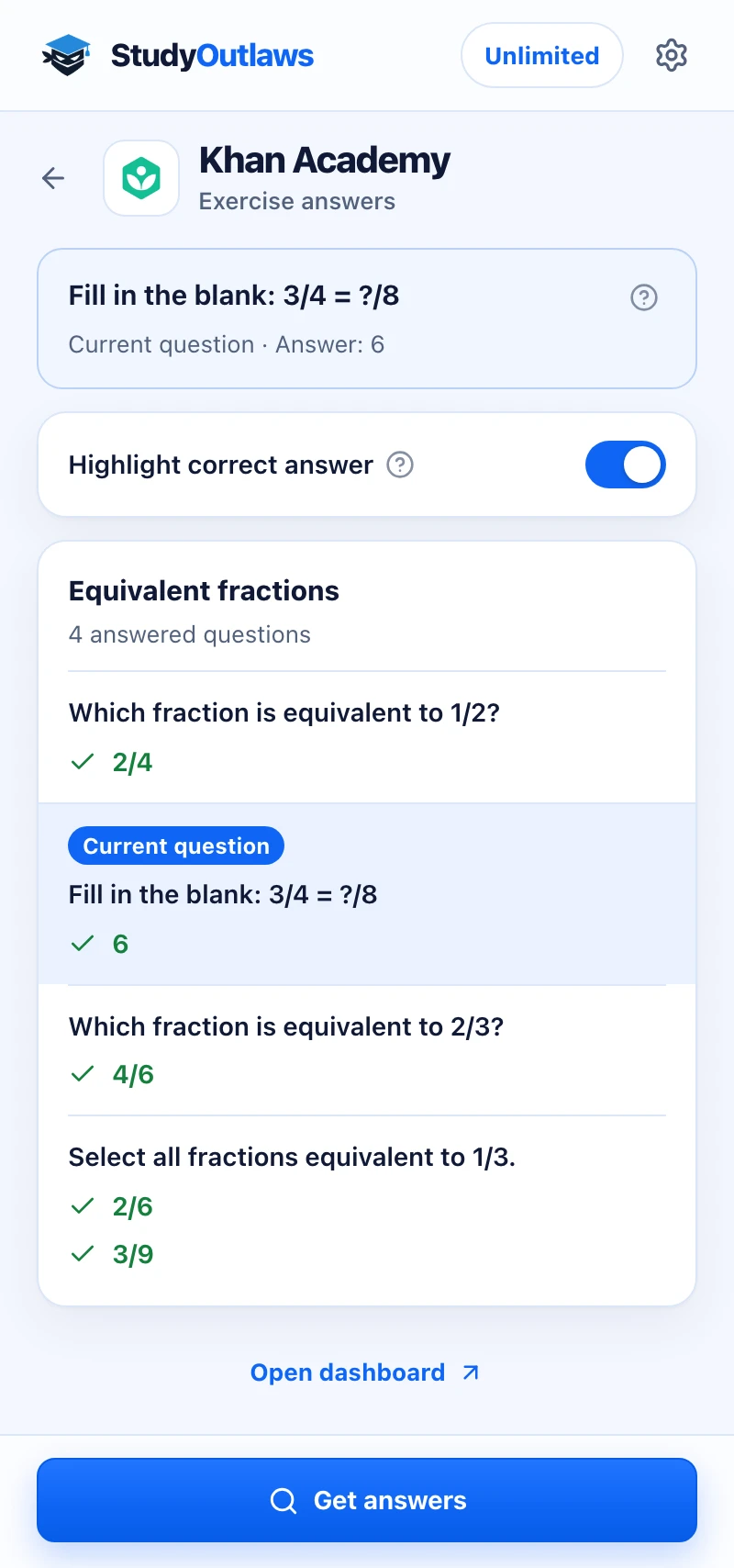
Press Get answers on the exercise. Its published answers load for every question at once.
The question on your screen is marked as Current question, with its answer at the top of the panel.
Highlight correct answer marks the right choice on the page. For typed questions, the answer appears beside the box for you to enter.
How to install the extension and sign in
- Open the listing
Use the Extension page on this site to open the StudyOutlaws listing in the Chrome Web Store, then add it to Chrome.
- Sign in
Open the extension and sign in with your StudyOutlaws account. A Free account is enough.
- Reload Khan Academy
If a Khan Academy tab was open while you installed the extension, reload it.
How to use it on a Khan Academy exercise
- Open an exercise page
The extension works on exercise pages, whose web address contains /e/ followed by the exercise name, on www.khanacademy.org or en.khanacademy.org.
- Wait for a question
With Highlight correct answer on, the extension gets the exercise's published answers when a question appears. The correct choice gets an outline and a Correct badge.
- Read typed answers
For a number, expression or dropdown question, the answer appears beside each box, for example Answer 200. Nothing is typed into the page.
- See the full list
Open the extension and press Get answers to list every question in the exercise with its answers. The question on screen is marked Current question.
Khan Academy answer settings
- Highlight correct answer: on by default. It outlines the correct choice on the exercise, or shows the answer beside a typed answer box.
- There's no Autosolve, Answer delay or Accuracy setting on Khan Academy, because the extension never answers for you.
- With Highlight correct answer off, the extension makes no automatic lookups. Get answers still works when you press it.
If Khan Academy answers don't show up
- Open a Khan Academy exercise first: the page isn't an exercise page. Open an exercise whose address contains /e/.
- Reload this page to activate the extension: the tab was open before the extension was installed. Reload it.
- No supported answers were found in this exercise: its questions are graphs or other interactive widgets the extension doesn't cover. Answer it yourself.
- Khan Academy didn't return the whole exercise: try again later.
- No hint beside a typed box: the hint appears only when the stored answers line up one to one with the boxes on screen. Find the question in the Get answers list instead.
- No outline on a choice question: the choices may be pictures, or the math may display differently from the stored text. Check the Get answers list.
- Not enough task credits remaining: wait for your credits to reset, or upgrade your plan.
What Khan Academy answers cost
A successful lookup costs 0.5 task credits and returns the answers for every question in the exercise. The automatic lookup reuses them while you stay on the page, but each press of Get answers is a new lookup and costs 0.5 credits again.
A choice question the published answers miss goes to AI and costs 0.5 credits. The extension labels it AI answer. Failed or empty lookups cost nothing.
The Free plan has 15 task credits a week, Pro has 100 a day and Ultimate is unlimited. Every plan gets the same Khan Academy tools.
Limits of the Khan Academy tools
- Graph, number line, sorter, matcher, categorizer and label-image questions aren't covered. The answer list counts them as unsupported.
- Typed questions get no AI answer, and choices that are only a picture stay unmarked.
- Pages that aren't exercise pages, such as a quiz or unit test at a different address, aren't covered.
- Only www.khanacademy.org and en.khanacademy.org are covered, and the extension looks up the English version of the exercise.
- There's no Khan Academy tool in the dashboard, and the extension needs Chrome on a computer.
Common questions
Is the Khan Academy extension free?
Highlighting works on the Free plan. Each exercise lookup uses 0.5 task credits, and each AI answer another 0.5.
Can it answer Khan Academy questions for me?
No. There's no Autosolve on Khan Academy. The extension shows the answer, and you enter and check it yourself.
Does it work on unit tests and quizzes?
Only on exercise pages, whose address contains /e/. If a quiz, unit test or mastery challenge opens at a different address, the extension asks you to open an exercise first.
Does it work on graphing questions?
No. Graph, number line and other drag or plot questions have no single stored answer, so the extension leaves them to you.
Ready to try it?
Questions along the way? Ask support and include this guide's link.
Related guides
- StudyOutlaws Chrome extension setup and supported sites4 min read
- Getting started with StudyOutlaws4 min read
 Get IXL answers with the IXL Work Solver3 min read
 Use the DeltaMath Assignment Runner3 min read
 Get AP Classroom answers with the extension4 min read
 Get NoRedInk answers with the extension4 min read