

Use the Edpuzzle Assignment Runner
Select an Edpuzzle assignment and video, choose preview or submission, and inspect answers and final platform status separately. Written items and watch progress can remain incomplete.
- Access
- Ultimate
- Task credits
- No task credits for this dashboard action
- Login
- Email/password or supported Google connection
- Completion
- Submission status and playback status are separate
How it works
- 1Select assignment
Connect the intended student account, load work and select the assignment/video.
- 2Choose the action
Use preview to review answers or explicitly choose Solve and submit.
- 3Check final status
Read answer coverage, written/unanswered items and submission status, then confirm in Edpuzzle.
Controls and result walkthrough
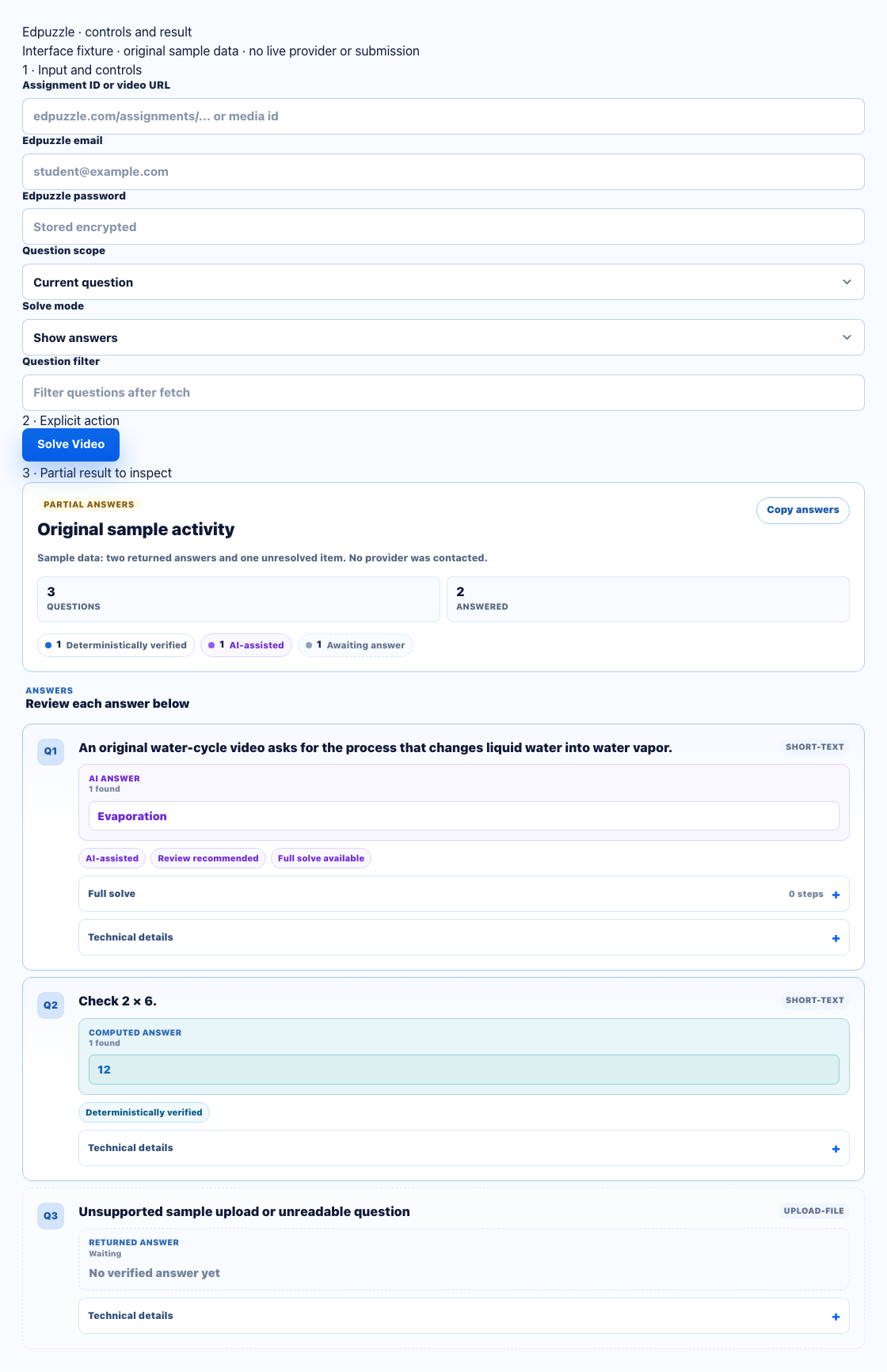
- Connect a compatible login and choose the assignment/video in the full dashboard.
- Show answers previews; Solve and submit is a separate action.
- Review written/unanswered items and the final assignment/playback status separately.
Login compatibility
Native Edpuzzle email/password and the separate supported Google connection flow are implemented. A school account using another SSO provider is not interchangeable with these methods. If Google consent or a school admin restriction blocks access, use the supported connection recovery or the platform manually.
Assignment selection through final status
- Load work after connecting and select the exact assignment, not just a video title from a different class.
- Preview returns available question answers without submitting them.
- Solve and submit attempts the supported answers and final submission. Inspect submitted status and any returned error for the chosen assignment.
- Written responses can be suggested or unresolved. Review the text and finish unanswered items in Edpuzzle.
- Question submission, watch intervals and video completion are separate provider states. An answer list or playback change does not alone confirm the assignment is complete.
Partial result example
If a video has two multiple-choice items and one unanswered written response, inspect the two resolved answers and the written item. Do not treat the answer count as final completion; check the assignment and playback status in Edpuzzle.
Errors and recovery
- Expired session: reconnect the same student account and refresh work.
- Written or missing answer: open the selected assignment and respond manually after reviewing the video context.
- Ambiguous submission response: inspect the assignment status before retrying. The service avoids blindly replaying a write it cannot confirm.
- Playback incomplete: return to Edpuzzle and complete the required playback. The extension playback controls are separate from the dashboard result.

