

Use the Pear Assessment Runner
Inspect supported Pear Assessment questions, partial answers and unresolved items before selecting submission.
- Access
- Ultimate
- Task credits
- No task credits for this dashboard action
- Account
- Supported Pear Assessment student login
- Result
- Answers, source labels and unresolved counts
How it works
- 1Connect and select
Load an accessible unfinished Pear Assessment assessment.
- 2Preview formats
Review returned answers and question sources before selecting submission.
- 3Check unresolved items
Inspect answered/unsupported counts and the provider status; finish unresolved work manually.
Controls and result walkthrough
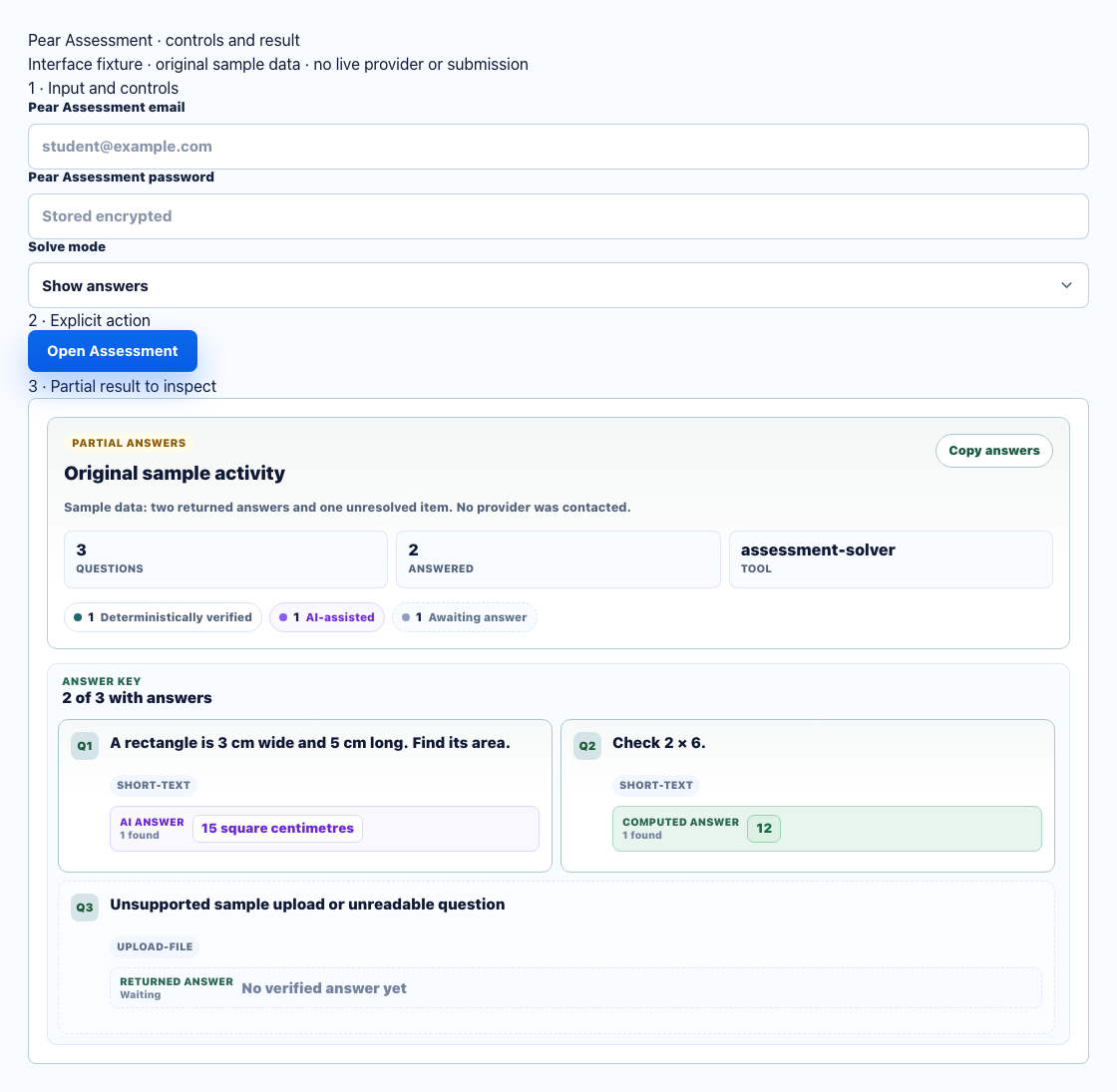
- Use a Pear Assessment student login and select an unfinished assessment.
- Check Show answers versus Solve and submit before running.
- Two resolved questions and one unsupported upload item remain a partial result.
Formats covered by repository fixtures
Contract tests cover multiple choice, multipart expressions, dropdown/cloze text, image drag/drop and image text, matching, classification, choice matrices, ordering, token highlighting, bar/line/histogram/line-plot/dot charts, graph points, fraction editor, math, short text, shading, hotspots, editing and sorting. These tests verify response transport and normalization; they do not establish live submission success for every format.
Unsupported and unresolved questions
- Audio response, plain-text essay, formula essay, inline-math essay, Likert scale and file upload are unsupported response contracts.
- Rich-text essay and short text are free-response formats. AI-authored text is a suggested response and needs review; a scoring rubric alone is not an answer key.
- Missing provider answers or unsupported private questions remain unanswered. Keep them in the result and complete them manually.
- Preview may return only part of an assessment. Compare solved, missing and unsupported counts with the original question count before submitting.
Partial result example
For a three-item assessment with two resolved objective questions and one upload-file question, review two answers and one unresolved item. The upload is not an empty correct answer, and two returned answers do not mean the assessment was completed.
Errors and recovery
Reconnect an expired session and refresh the assessment list. If an assessment is unavailable, verify that the connected student account can open it in Pear Assessment. After any ambiguous submission response, inspect the assessment in Pear before repeating the write.

