
 More sites in the Chrome extension
Get Canvas quiz answers with the extension
Open a Canvas New Quizzes quiz with the StudyOutlaws extension and press Get answers. Each answer is marked on the quiz. On Pro or Ultimate, Fill in answers and Autosolve enter them for you, and an optional auto-submit can submit the quiz. On your school's own Canvas address, press Enable on this site first.
- Access
- Any signed-in account, including Free
- Cost
- 0.5 credits per answer
- Buttons
- Get answers, or Fill in answers on Pro
- Where
- Chrome extension on a Canvas New Quizzes quiz
How it works
- Open the quiz
Start the New Quizzes quiz in Canvas and let the first question load.
- Show the answers
Open the extension and press Get answers, or Fill in answers on Pro.
- Check and submit
Read the answers, then submit the quiz yourself unless you turned on auto-submit.
What you will see
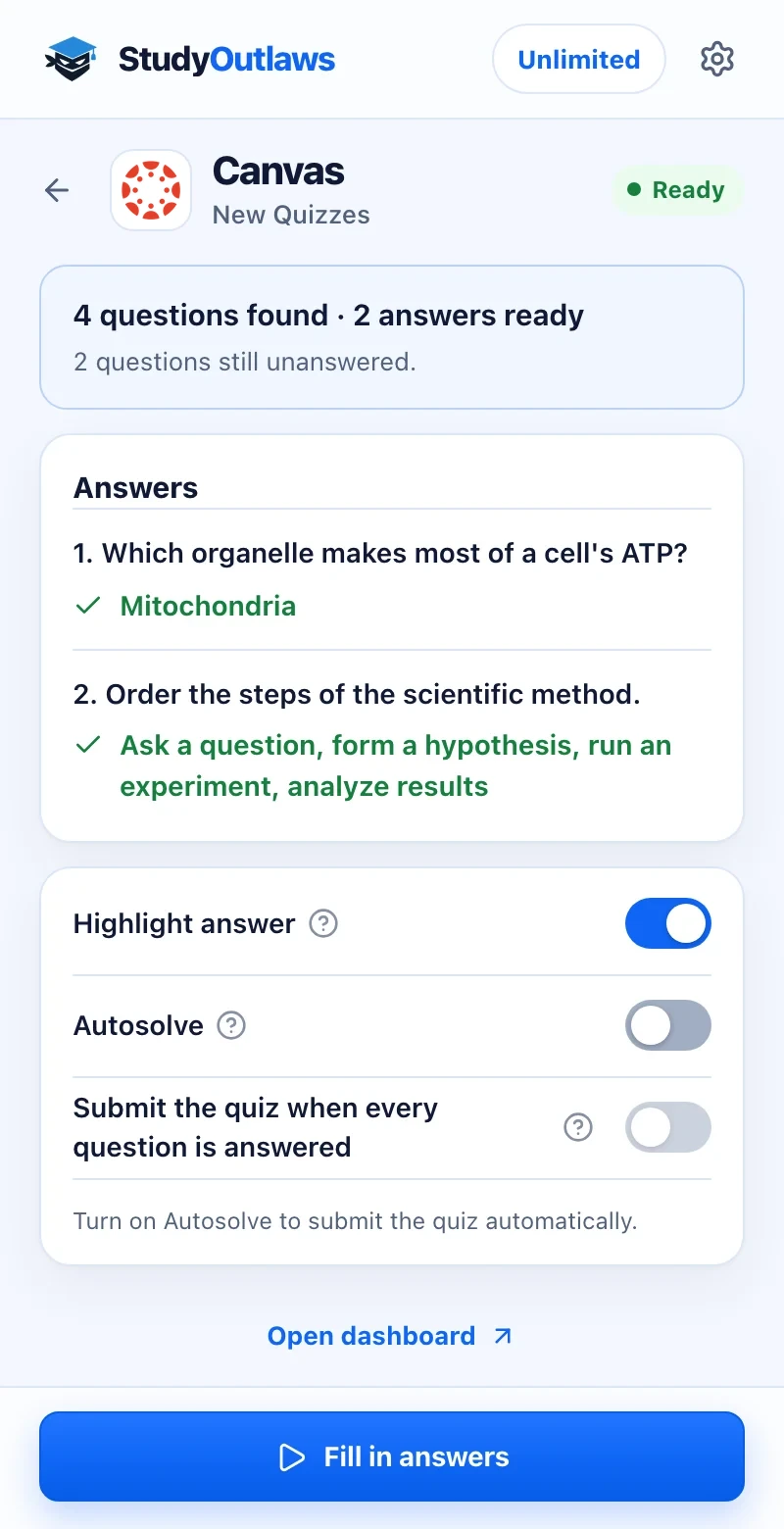
Open the New Quizzes quiz. The panel counts the questions it found and the answers that are ready.
Each answer is listed in the panel and marked on the quiz. Press Get answers, or Fill in answers on Pro.
Autosolve fills in unanswered questions on Pro. Submit the quiz when every question is answered stays off unless you turn it on.
Install the extension and sign in
- Install it
Open the Extension page on this site and add StudyOutlaws to Chrome from the Chrome Web Store.
- Pin it
Pin the extension to the toolbar so it's one click away.
- Sign in
Sign in with your StudyOutlaws account. A Free account is enough to see answers.
- Reload the page
If the quiz was already open, reload it. Until you do, the panel says Reload the quiz to activate the extension.
Use it on your school's Canvas address
- Open the quiz
On canvas.instructure.com or yourschool.instructure.com the extension works right away. On your school's own address, such as canvas.yourschool.edu, open a New Quizzes quiz first.
- Press Enable on this site
The panel offers Enable on this site on a quiz page. Chrome then asks you to allow that one site.
- Reload the quiz
After you allow it, reload the quiz. The site stays enabled until you remove it in Chrome's extension settings.
How to see answers on a Canvas quiz
- Press Get answers
The extension reads the question on screen and its options, and StudyOutlaws works out the answer. The answer is marked on the quiz.
- Use Highlight answer
With Highlight answer on, each question is looked up as it appears, so you can go through the quiz without pressing the button.
- Let it fill in answers on Pro
On Pro or Ultimate, press Fill in answers, or turn on Autosolve. It fills in each question you haven't answered after your delay, then goes to the next question. Your own answers stay.
- Submit
You submit the quiz yourself. Only if you turn on Submit the quiz when every question is answered does Autosolve submit it, after StudyOutlaws checks the answers once more.
Which questions it answers
- Multiple choice and multiple answer: the right options are marked.
- Matching: the right match is shown for each item.
- Ordering: the right order is shown.
- Pictures in a question are sent with it when the page can read them.
- Other New Quizzes question types say StudyOutlaws can't read this question type yet. Answer those yourself. Classic Quizzes aren't supported yet.
Answer settings in the panel
- Highlight answer: shows each answer on the quiz and looks questions up automatically. Each lookup costs credits.
- Autosolve (Pro or Ultimate): fills in each question nobody answered after your delay, then goes to the next question.
- Submit the quiz when every question is answered: off by default and only with Autosolve on. It applies to the attempt and page you turned it on in, and a reload turns it off again.
- On the Free plan, Autosolve shows a Pro lock. Get answers and Highlight answer still work.
If it doesn't work
- The panel says Reload the quiz to activate the extension: reload the quiz tab, then open the extension again.
- The panel offers Enable on this site: your school uses its own Canvas address. Allow it, then reload the quiz.
- The quiz is a Classic quiz: Classic Quizzes aren't supported yet, so answer it yourself.
- Some answers didn't go in: auto-submit turns off for that attempt. Check those questions and submit the quiz yourself.
- It says you're out of credits: wait for your credits to reset, or upgrade your plan.
How much the Canvas tools cost
Get answers and Highlight answer work on every plan. Each answer costs 0.5 credits. Free includes 15 credits a week, about 30 answers. Pro includes 100 credits a day, and Ultimate is unlimited.
Fill in answers, Autosolve and auto-submit need Pro or Ultimate.
Limits of the Canvas tools
Answers come from AI using the question and its options; the extension never reads Canvas answer keys or result pages, so an answer can be wrong. Check them before you submit. It works only on New Quizzes pages, and on a school's own Canvas address only after you enable that site. No Canvas account details or cookies are sent to StudyOutlaws.
Common questions
Does it submit the Canvas quiz for me?
Only if you turn on Submit the quiz when every question is answered, which needs Autosolve on Pro or Ultimate. It's off by default, and a reload turns it off again.
Does it work on my school's Canvas site?
Yes. On your school's own Canvas address, open a quiz, press Enable on this site and allow it in Chrome, then reload the quiz.
Does it work on Classic Quizzes?
Not yet. Classic Quizzes aren't supported, so answer those quizzes yourself. It works on New Quizzes.
Is it free on Canvas?
Get answers works on every plan for 0.5 credits per answer. Filling answers in and Autosolve need Pro or Ultimate.
Does it read the Canvas answer key?
No. It reads the question and options on the page and works out each answer with AI. Check them before you submit.
Ready to try it?
Questions along the way? Ask support and include this guide's link.
Related guides
- StudyOutlaws Chrome extension setup and supported sites4 min read
- Getting started with StudyOutlaws4 min read
- Run now, sessions and scheduling3 min read
 Get Google Forms quiz answers with the extension4 min read
 Get Savvas Realize answers with the extension3 min read
 Get Amplify lesson answers with the extension3 min read