
 More sites in the Chrome extension
Use the Google Docs Auto Typer in the extension
The StudyOutlaws Auto Typer, part of the Chrome extension, types your text into Google Docs for you. Paste or write up to 50,000 characters in the panel, pick a typing speed from 10 to 300 words per minute, press Start typing and click where the text should go. It types at your cursor, one character at a time, with natural pauses. It needs Pro or Ultimate, uses no credits, and your text is never sent to StudyOutlaws.
- Access
- Pro or Ultimate
- Cost
- No credits: it runs in your browser
- Buttons
- Start typing, then Pause, Resume and Stop
- Where
- Chrome extension on an editable Google Doc
- Typing speed
- 10 to 300 WPM, 60 by default
How it works
- Open your document
Open an editable Google Doc with the extension signed in on Pro or Ultimate.
- Add your text
Paste or write it under Text to type in the panel, and choose a typing pace.
- Start and click
Press Start typing, then click where the text should go. Typing starts after a short countdown.
What you will see
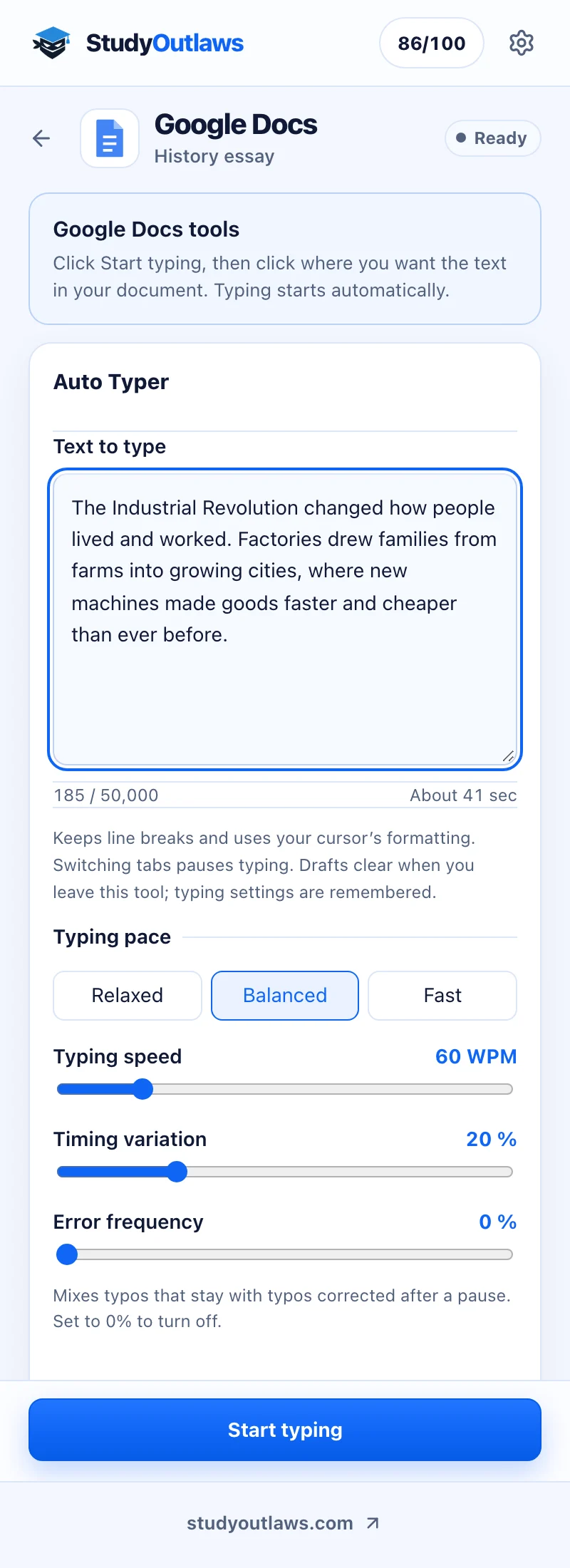
Open a Google Doc you can edit. The panel shows the document's title and the status Ready.
Paste or write your text under Text to type. The counter and the time estimate, here About 41 sec, follow your text and pace.
Pick a pace, press Start typing, then click in the document where the text should go. Typing starts after the countdown.
Install the auto typer extension and sign in
- Install it
Open the Extension page on this site and add StudyOutlaws to Chrome from the Chrome Web Store.
- Pin it
Pin it so the panel is one click away.
- Sign in
Sign in with your StudyOutlaws account on Pro or Ultimate. On other plans the panel says Auto Typer is available on Pro and Ultimate, with an Upgrade to Pro button.
- Reload the document
If the document was already open, reload it. Until you do, the panel says Open an editable document and reload the page to connect.
How to auto type in Google Docs, step by step
- Open the panel
In the document's tab, open the extension. It shows Google Docs with your document's title and the status Ready.
- Add your text
Paste or write it under Text to type. Below the box you see how many characters you have, out of 50,000, and how long typing will take, such as About 41 sec.
- Press Start typing
The status changes to Click in document. There's no time limit for the next step.
- Click where the text should go
Click once in the document without selecting text. A countdown starts by itself, Typing starts in 3 seconds…, and then the Auto Typer types at your cursor.
- Watch it finish
The panel counts the characters typed, such as 120 / 185 characters. At the end it says Finished. Review the text in your document.
Typing speed and other settings
- Relaxed, Balanced and Fast: one-tap presets for 35, 60 and 120 words per minute (WPM).
- Typing speed: from 10 to 300 WPM, 60 by default. A word counts as five characters.
- Timing variation: from 0 to 80%, 20% by default. Each key comes a little sooner or later, for human-like typing instead of a perfectly even rhythm.
- Error frequency: from 0 to 10%, off by default. Some letters are typed as a neighboring key; about half of those typos stay, and the rest are deleted and retyped after half a second. Numbers, spaces and punctuation are never mistyped, and Google Docs' own autocorrect may still fix a typo that was meant to stay.
- Start / resume countdown: from 0 to 30 seconds, 3 by default.
- Punctuation pause: from 0 to 3,000 ms, 250 by default, after a period, comma, semicolon, colon, question mark or exclamation mark.
- Paragraph pause: from 0 to 10,000 ms, 800 by default, at each line break.
- Reset settings puts every value back to its default. The extension remembers your settings, but not your text.
Pause, resume and stop
- Pause stops typing where it is. Resume waits for your cursor in the document, counts down again and carries on from the next character.
- Typing or clicking in the document yourself while it types pauses the run: Paused because you interacted with the document. Place your cursor, then resume.
- Switching to another browser tab pauses it too: Paused because you switched tabs. Return here to resume.
- If the document loses focus, for example when you click in the panel, typing waits until you click back in the document. No character is skipped.
- Stop ends the run. Text already entered stays in your document.
- Reloading or leaving the document also ends the run.
What the Google Docs typer types
- Plain text, up to 50,000 characters. Line breaks become new paragraphs, and blank lines stay.
- The text takes the formatting at your cursor, such as its font and size.
- Accents, emoji, tabs and punctuation are typed as written.
- It only types into the document's text, never into the title, the search box, a comment or over selected text.
- It works in editable Google Docs documents only, not in Sheets, Slides, Forms, view-only documents, previews or published pages.
Auto Typer messages and fixes
- Open an editable document and reload the page to connect, or Reload the document to connect the auto typer: reload the document's tab, then open the panel again.
- Open an editable Google Doc and click inside its text before starting: the document is view-only or still loading. Open a document you can edit.
- Click inside the document to place your cursor. Typing will start automatically: click in the document's text where the text should go.
- Click in the document without selecting text to start typing: click once more to clear the selection.
- Return to this document before starting: bring the document's tab to the front, then click in it.
- The document tab changed. Reload to start a new run: you switched to another tab inside the Google Doc. Reload the page before typing there.
- Return to the original Google Doc and reopen its tools: the panel belongs to another document. Go back to it, or open the panel in the new one.
- The document did not respond. Reload it before trying again: reload the document, check what was typed, and start again with the rest.
Cost and plans
The Auto Typer is part of Pro and Ultimate. It uses no task credits, because it runs entirely in your browser, so long texts cost nothing extra.
On other plans the panel shows the Auto Typer locked, with an Upgrade to Pro button.
Limits and privacy
The auto typer extension types through Google Docs' own text input, without using your clipboard, so Google Docs saves the text as usual. The progress count shows characters sent, so read the document when it finishes.
Your text is never sent to StudyOutlaws. It stays in the panel until it's typed and clears when you leave the tool; only your typing settings are saved, in the extension. Using it on schoolwork may break your school's rules, so check them first.
Common questions
Is the Google Docs auto typer free?
No. It needs Pro or Ultimate. It doesn't use task credits, so typing long texts costs nothing extra on those plans.
How fast can the auto typer for Google Docs type?
From 10 to 300 words per minute. Balanced, 60 WPM, is the default, and the panel estimates how long your text will take before you start.
Why did typing pause by itself?
You typed or clicked in the document, or switched tabs. Click where typing should continue, then press Resume.
Can it make typing mistakes on purpose?
Only if you raise Error frequency above 0%. Then some letters are mistyped, and about half of those typos are corrected after a short pause.
Does it work in Google Slides, Sheets or Forms?
No. It types only into editable Google Docs documents.
Is my text sent to StudyOutlaws?
No. The text goes from the panel straight into your document, and the panel clears it when you leave the tool.
Ready to try it?
Questions along the way? Ask support and include this guide's link.


